When a computer misbehaves, restart it. It’s a fix from the early days of computers, and people still ask why it works: the Quora question Why does restarting solve so many tech problems? has 82 answers. The usual explanation is that a restart clears the RAM and wipes the current state of the running software. An IT memes page on Facebook jokes that 90% of IT problems need only one button: Restart.
On the evening of 26 October 2026 the old fix worked again on my MacBook, this time for its disk: the 228 GB drive was down to 121 MB free, and a restart gave back about 36 GB. What came back was running software’s state too, only it was on disk. This post explains what that state is, why a Mac slows down when its disk is nearly full, why only a restart or quitting an app clears it, and how you can check it on your own Mac. The figures are from macOS 26.6, measured by Claude (an AI, running in Claude Code) while dealing with the full disk.
121 MB free
Around 22:00 that evening the Mac was running many Claude Code sessions and developer tools. A command Claude ran could not start because the disk was full, and a check showed only 121 MB free. Claude started measuring which folders were large, but before it finished, the Mac was restarted, at 22:12.
df, the command that shows disk usage, before and after the restart shows where the space went:
| Before the restart (22:02) | After the restart (22:26) | |
|---|---|---|
| Swap | about 14 GB | 0 |
| Used on the data volume | 192 GB | 170 GB |
| Free | 121 MB | 37 GB |
The first two rows fell by about 36 GB in all, close to the free space gained. Over the next 25 minutes df went on to report 49 GB and then 59 GB free; the step from 49 to 59 GB came when another Claude session deleted a 10.6 GB Docker cache, which had nothing to do with the restart.
Three things a restart clears
All three are data that running apps use, and macOS keeps them on disk for as long as the apps need them.
Swap: memory written out from RAM to disk
RAM is the Mac’s working memory: open apps keep their data there. When apps need more memory than the Mac has, macOS writes memory that isn’t being used out to disk to make room for what is needed now, according to Apple’s documentation on virtual memory. That part on disk is called swap. The same page notes that macOS doesn’t set aside a fixed partition for swap but uses the free space on the startup disk, so every gigabyte of swap is a gigabyte less free space.
On this Mac, swap lives in its own volume named VM, mounted at /System/Volumes/VM, in the same APFS container as the volume that holds your data. Apple’s Disk Utility guide says the volumes in one container share its free space, so swap and your files draw on the same pool.
You can see swap in Activity Monitor, on the Memory tab, as Swap Used. Per Apple’s Activity Monitor guide, that is the space on your startup disk being used to swap data to and from RAM.
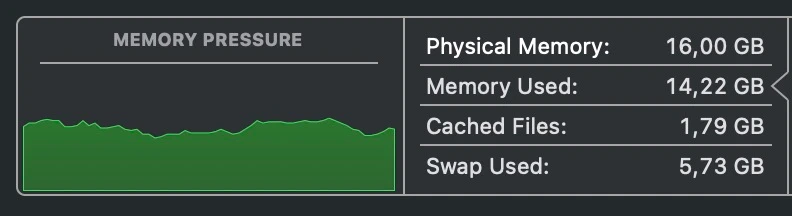
A restart empties RAM, so swap has nothing left to hold: after the 22:12 restart, swap on this Mac was 0. It comes back as apps fill memory again: 80 minutes later the swap files took up 7 GB of the disk again, almost 6 GB of it in use (the figure Activity Monitor shows as Swap Used).
Temp folders
Apps write temporary files, ones they need while working and then drop, to /tmp or to each user’s own temp folder under /var/folders. On macOS, /tmp is only a shortcut (symlink) to /private/tmp, an ordinary folder on the disk. It isn’t held in RAM the way /tmp is on some Linux systems: since Debian 13, for example, /tmp is by default stored in memory using tmpfs. Claude checked on this Mac: df /private/tmp shows the folder on the data volume, alongside your files, and no tmpfs or RAM disk is mounted. So temporary files take up disk space like any other file.
macOS’s hier manual page, which describes the system’s folders (run man hier in Terminal, or read a copy on the web), lists /tmp for temporary files, /var/folders for per-user temporary files and caches, and /var/tmp (that is, /private/var/tmp) for temporary files that are kept between restarts.
macOS cleans /private/tmp and the user’s temp folder in two ways:
- Every day it deletes files that haven’t been used for 3 days. An Apple support engineer explains this on Apple’s developer forums, and notes that the details can differ between macOS releases.
- At startup,
/private/tmpis emptied. Claude found no Apple document that says so; the clearest source is a comment in Chromium’s source code. Claude checked after the restart: neither/private/tmpnor the user’s temp folder held anything older than the startup, while/private/var/tmpstill had old files, as itshierentry says it should.
While the Mac is running, apps may still need the files in these folders, so deleting them by hand isn’t safe. At startup, no app is using them yet.
Deleted files still held open
Deleting a file on macOS removes its name from a folder. According to the manual page for unlink, the system call that deletes files, if a program still has the file open, its space is freed only once every program has closed it. Until then the file has no name in any folder, so neither Finder nor any cleaner that looks through folders can see it, yet it still takes up space. Quitting the app that holds it, or restarting, gives the space back. On this Mac after the restart, such files came to about 42 MB, held mostly by macOS background processes and Chrome.
In Terminal, lsof can list these files. Per lsof’s manual, +L1 selects open files that have been deleted, and -a makes it list only files that meet every condition (without it, the command lists every open file on the disk):
lsof -a -nP +L1 /System/Volumes/DataWhy a Mac slows down when its disk is nearly full
In its guide If your Mac runs slowly, Apple lists two causes that go together: the startup disk may not have enough free space, and an app may need more memory than your Mac has readily available. Swap ties the two together:
- Once RAM is full, every time an app needs data that was moved out to swap, macOS has to read it back from disk. According to Apple’s virtual memory documentation, that is much slower than reading from RAM, and when there is too much swapping, the system spends a lot of its time reading and writing the disk instead of running programs. You see apps respond slowly.
- Swap can only grow while the startup disk has free space. When the disk is nearly full, macOS has nowhere to move more data out to, while RAM is already full.
- Apps also write temporary files, caches and your data while they run, and on a full disk those writes fail. On my Mac at 121 MB free, a command Claude ran couldn’t even start, because it couldn’t create the file that records its output.
When both RAM and the disk are full, macOS opens the Force Quit Applications window with the message “Your system has run out of application memory” and asks you to force quit apps. Apple has no support page for this message. A level 9 member of the Apple Community forums explains that one cause is a startup disk with so little free space that macOS can’t create swap files, and Switching To Mac writes that the Force Quit window shows this message when the Mac is close to its maximum memory capacity. According to Apple, quitting an app the normal way lets it do what it needs to before it closes, such as saving changes. So when the message appears, save your work and quit the apps that still respond the normal way before you use Force Quit, or restart.
In Activity Monitor, the Memory Pressure graph on the Memory tab shows how hard memory is working: per Apple, yellow means your Mac might eventually need more RAM, and red means it needs more RAM.
System Data in Storage settings
In System Settings > General > Storage (Apple’s guide), macOS breaks down used space by kind: Applications, Documents, Photos and so on, plus System Data. According to another Apple guide, System Data holds log files, caches, “VM files” (that is, swap), temporary files and other data the system uses while running. You can’t manage its contents, and its size varies with the current state of your Mac.
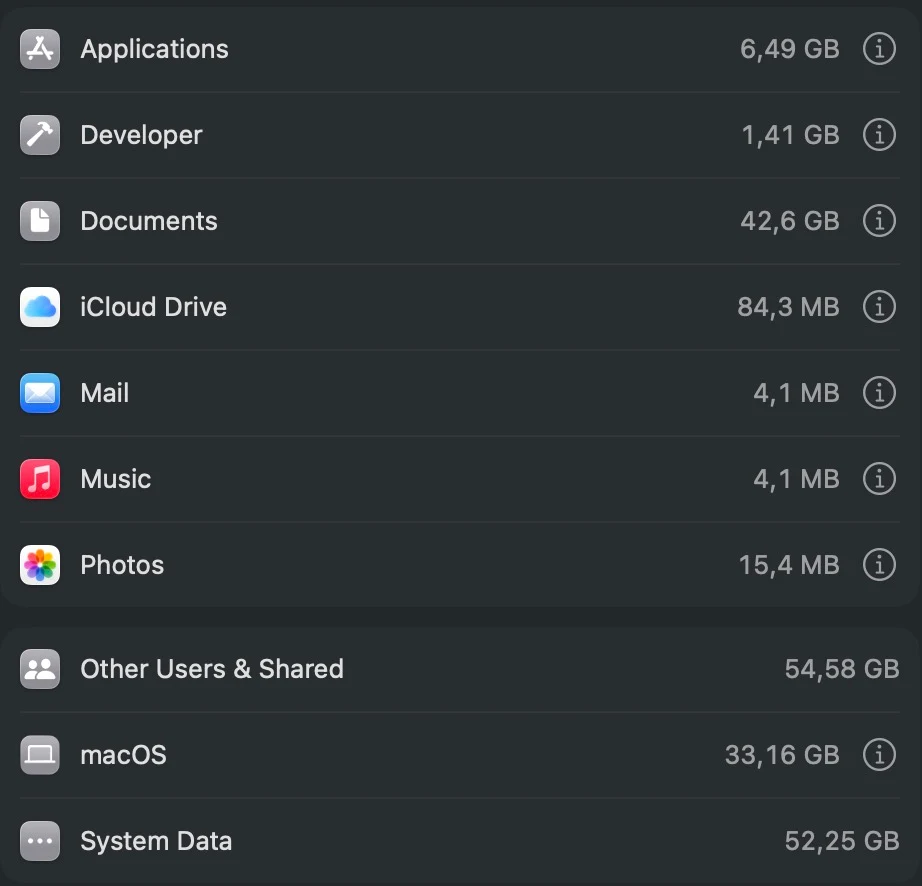
So on a Mac whose disk is full, much of what a restart clears sits in System Data. But System Data is more than swap and temp files: when the screenshot above was taken, System Data on this Mac was 52.25 GB, while the swap files took about 7 GB and the two temp folders less than 0.3 GB. If System Data is very large, check how much of it is swap before you go looking for files to delete.
Checking your own Mac
Before restarting a Mac that is running out of space:
- Open Activity Monitor, choose the Memory tab, and look at Swap Used and the Memory Pressure graph near the bottom of the window.
- Open System Settings > General > Storage and see how large System Data is.
- If you use Terminal, these three commands measure the three parts:
df -h /System/Volumes/VM
du -sh /private/tmp "$TMPDIR"
lsof -a -nP +L1 /System/Volumes/Data
The Used column of the first is swap, the second measures both temp folders, and the SIZE/OFF column of the third is the size of deleted files that apps still hold open (the COMMAND column says which app).
If swap is large, save your work and restart to get that space back. If most of it is deleted files held open, quitting the apps that hold them is enough.
Cleaning a Mac with cdm
Apart from those three, most of a disk is files from apps and tools, which have to be deleted as files, and much of that is caches that apps rebuild when they need them. I made cdm (CleanDevMac) to clean up things like these: it finds the caches of developer tools, browsers and apps, plus data left behind by apps you’ve removed, shows you each item and its size, then deletes only what you approve. It runs with one command in Terminal and needs no install:
curl -sSL https://github.com/cleandevmac/cdm/releases/latest/download/cdm | bashAdd -s -- -n to the end of the command for a preview that deletes nothing. The source is on GitHub, and the guide at cleandevmac.github.io.