
Lightspot guide
What it searches
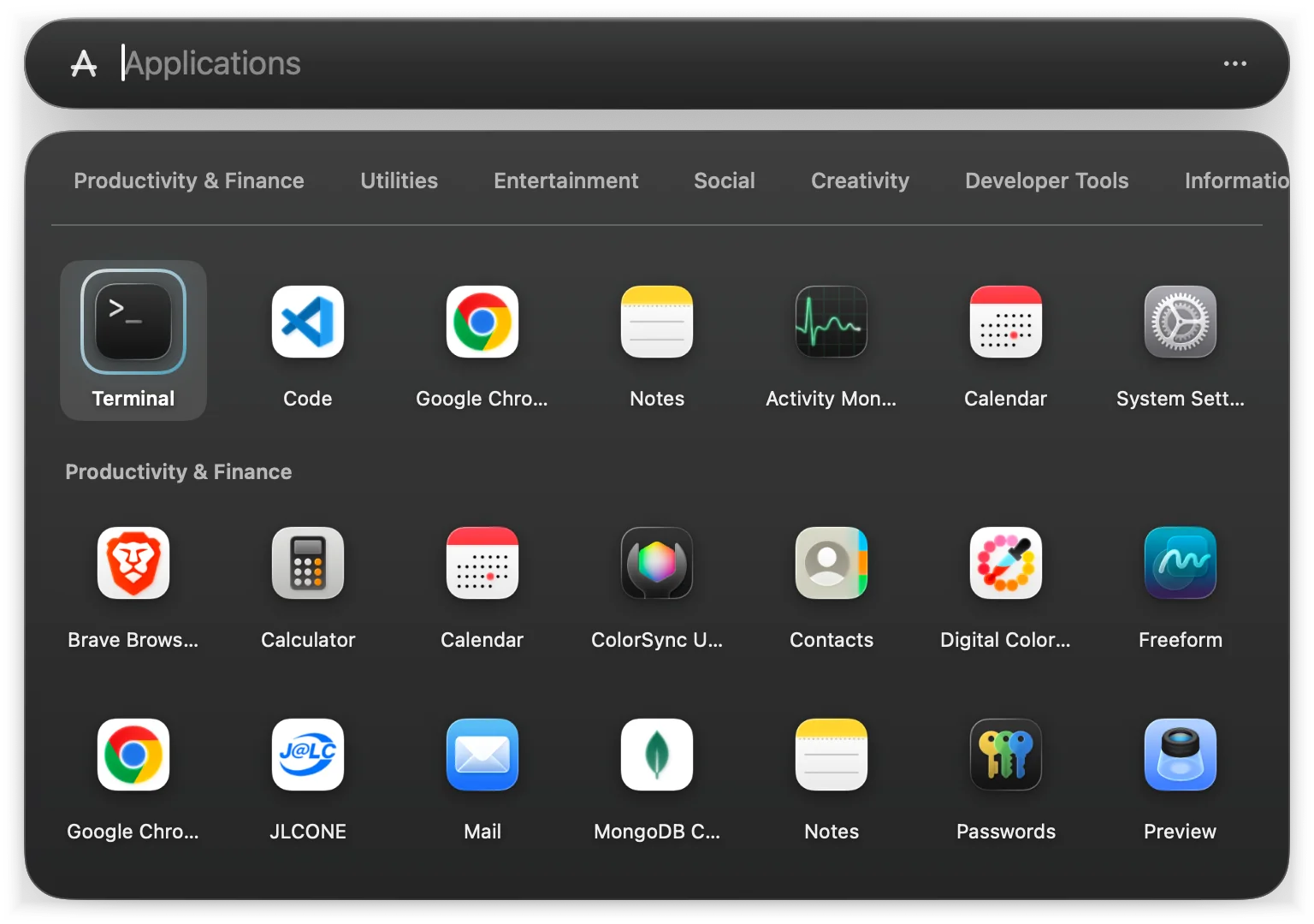
Apps, in a categorised grid
Open Lightspot with ⌘Space and your recent apps are already there, with every other app sorted into categories.
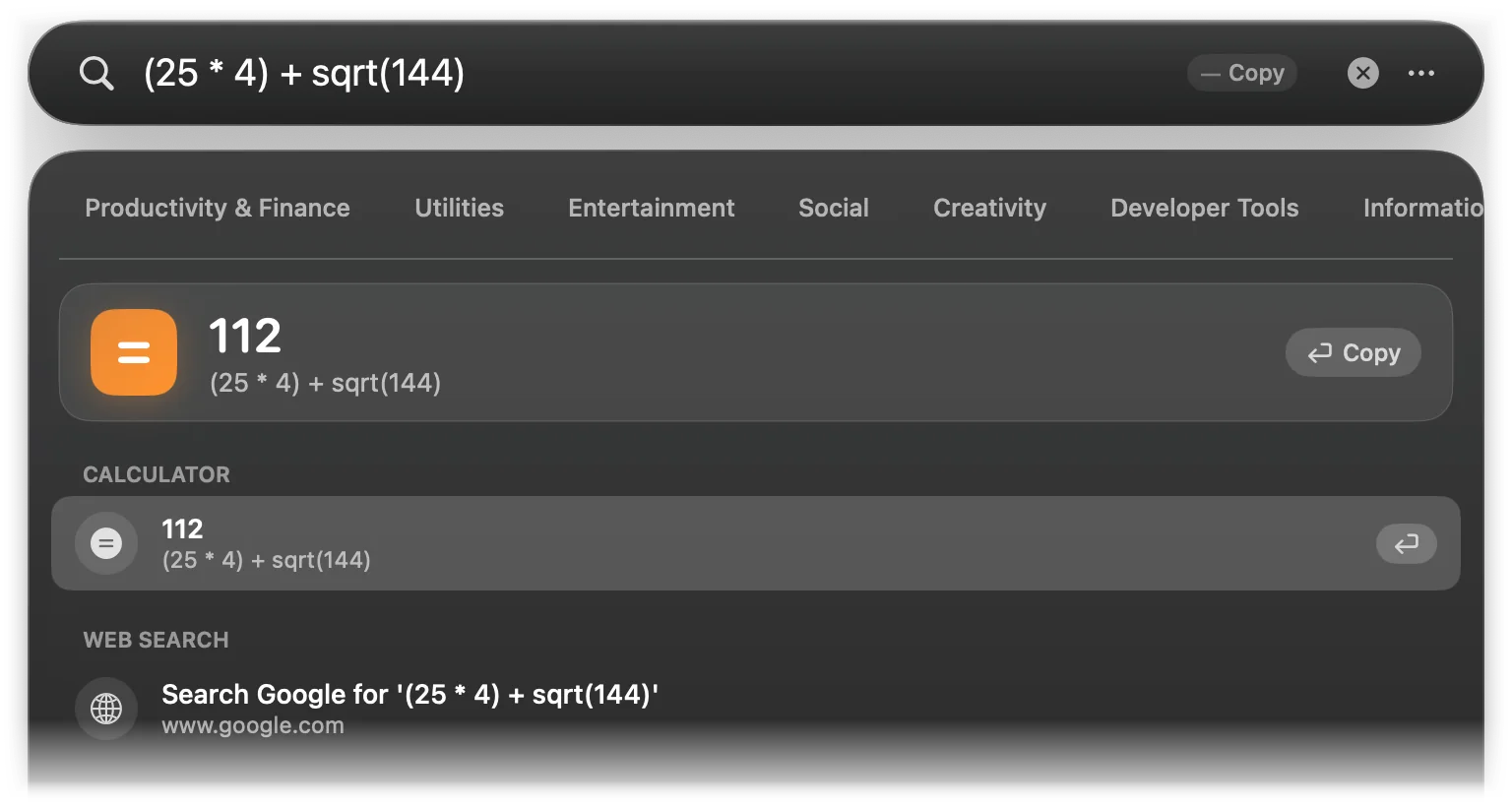
Calculator and conversions
Type
2^16,100km in mi,72F in Cor$100 in EURand press ↵ to copy the answer.Developer tools
UUIDs, Base64, URL encoding, hashes, JWT and JSON, timestamps, colours,
kill :3000and a hardware readout, offline.Shell history and projects
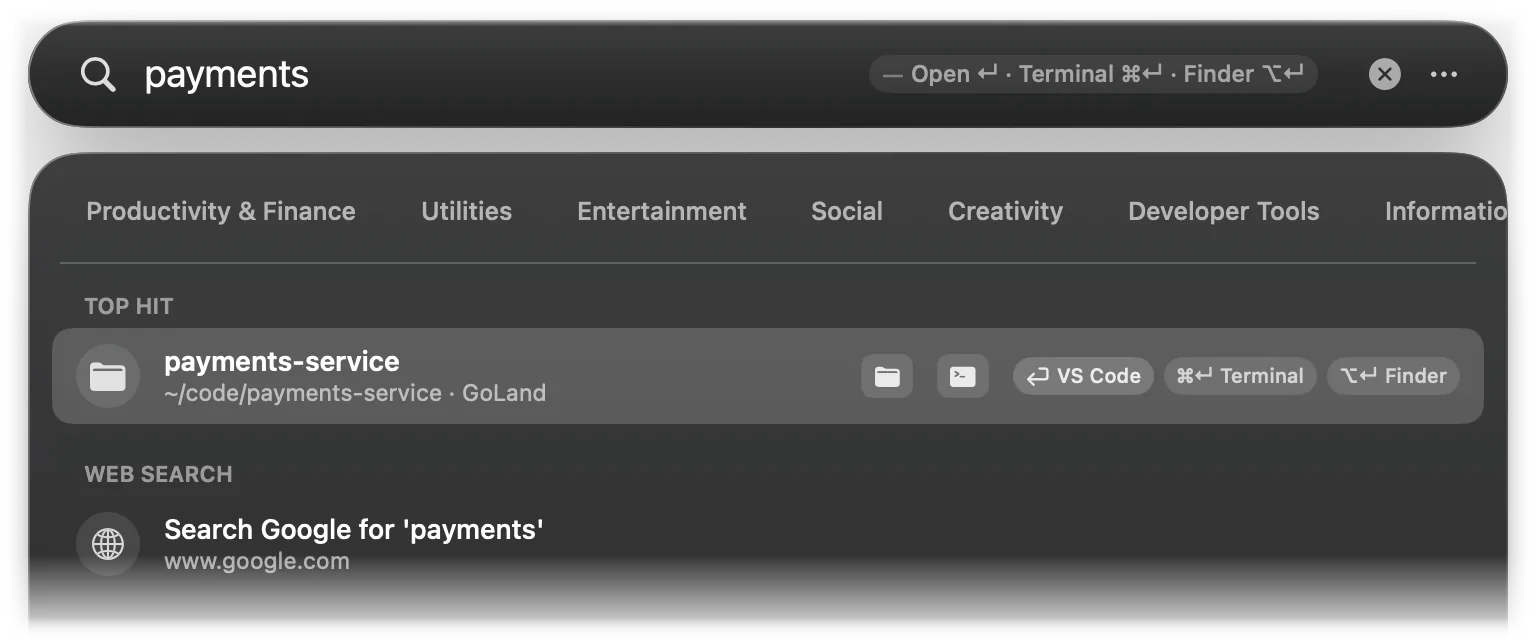
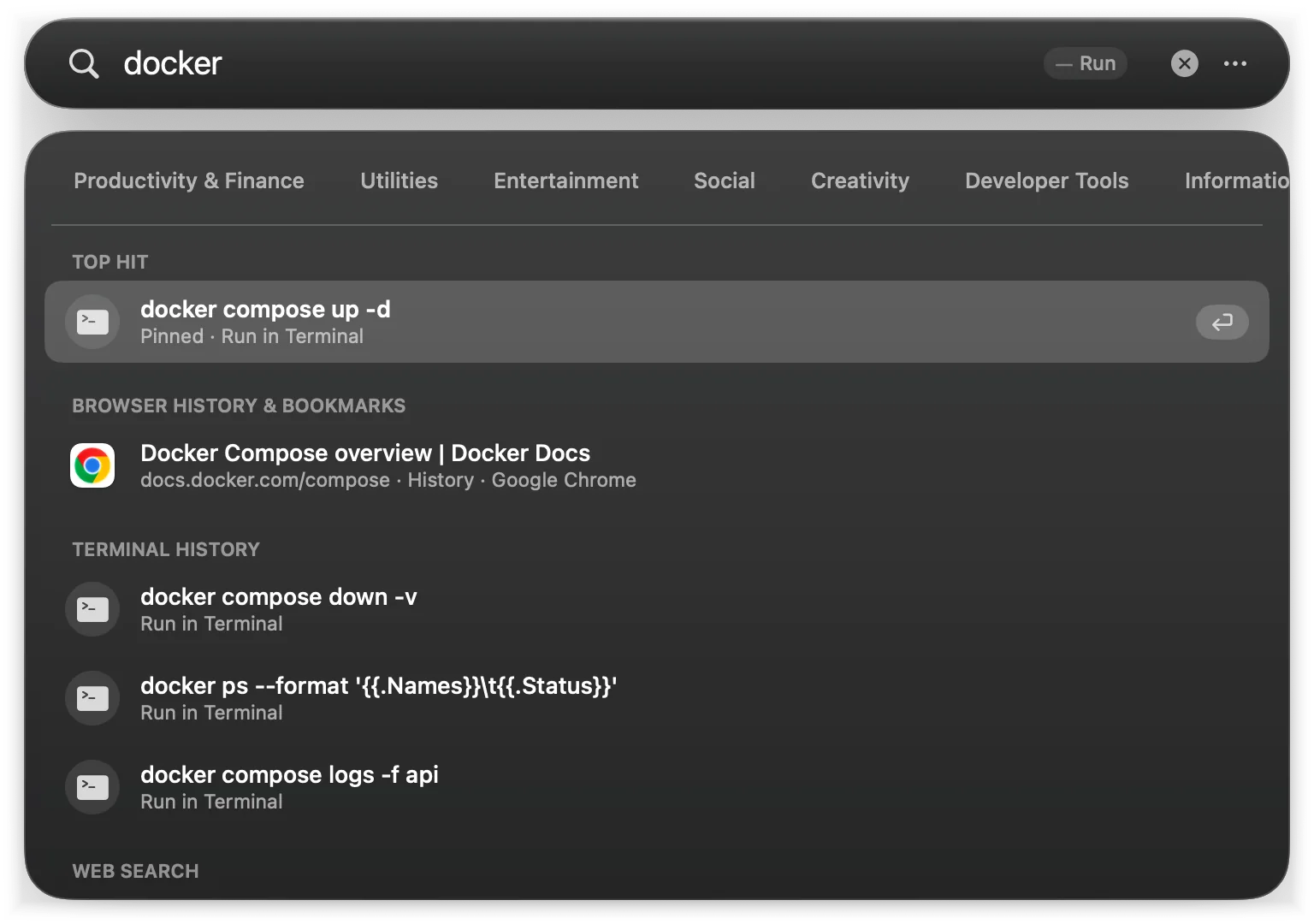
Run any command from your zsh history again, pin the ones you use, and open recent VS Code, Cursor, Zed, JetBrains or Sublime projects.
Custom commands and web search
Add your own URL, Terminal, shell or AppleScript commands with a prefix like
ghand a{query}argument.Browser, clipboard and system
Tabs and bookmarks of your default browser, clipboard history kept in memory, 35 System Settings panes and 19 quick actions.
Turns off Apple Spotlight for you
One menu item frees ⌘Space, stops the Spotlight process and its indexing, and another restores all of it.
Local by design
No analytics and no account. Its two network requests, a daily update check you can turn off and an IP lookup you ask for, are documented.
A quick look
Every screenshot on these pages is Lightspot 1.2.0 on macOS 26. The history, projects, bookmarks and clipboard in them are demo data.
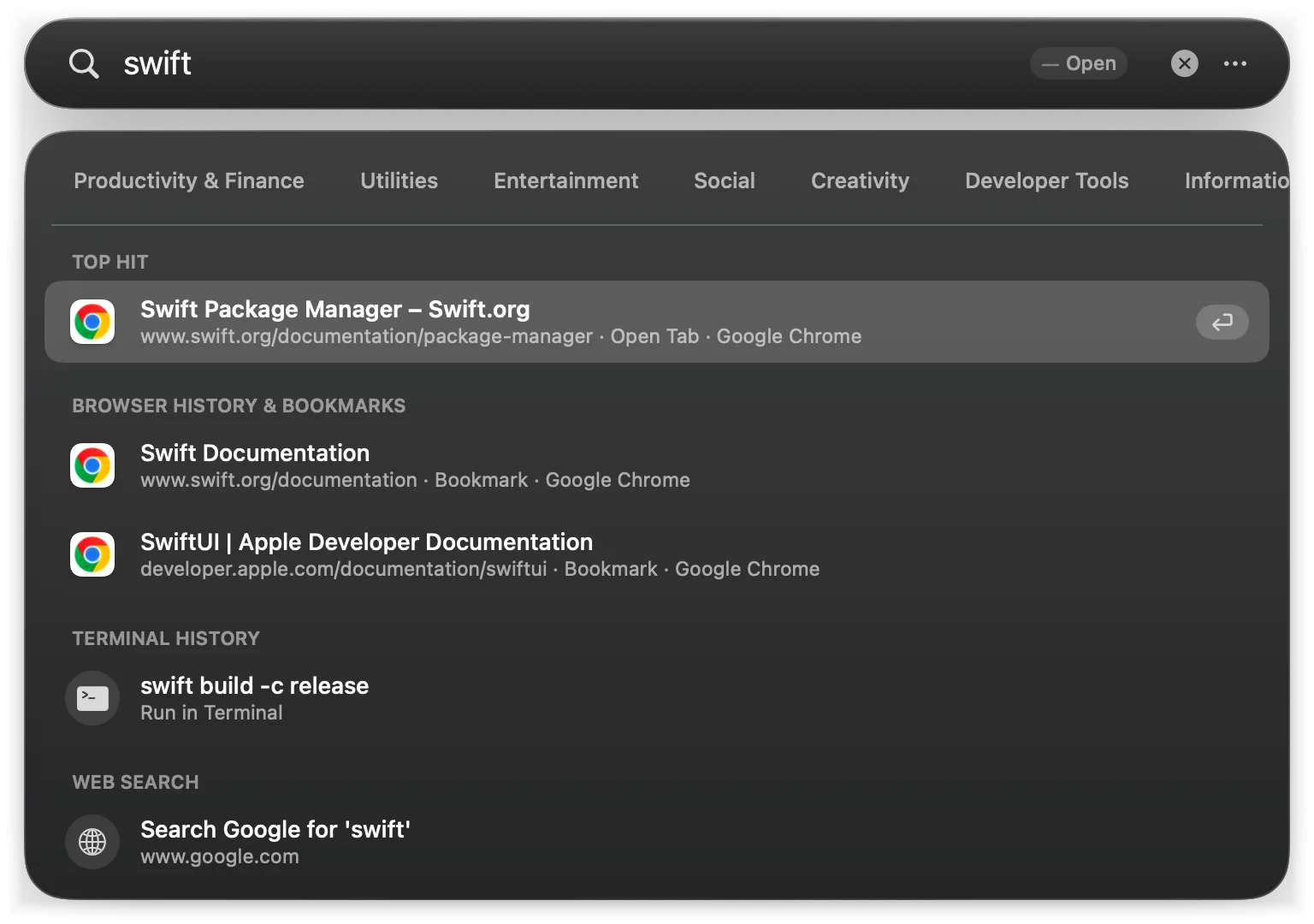
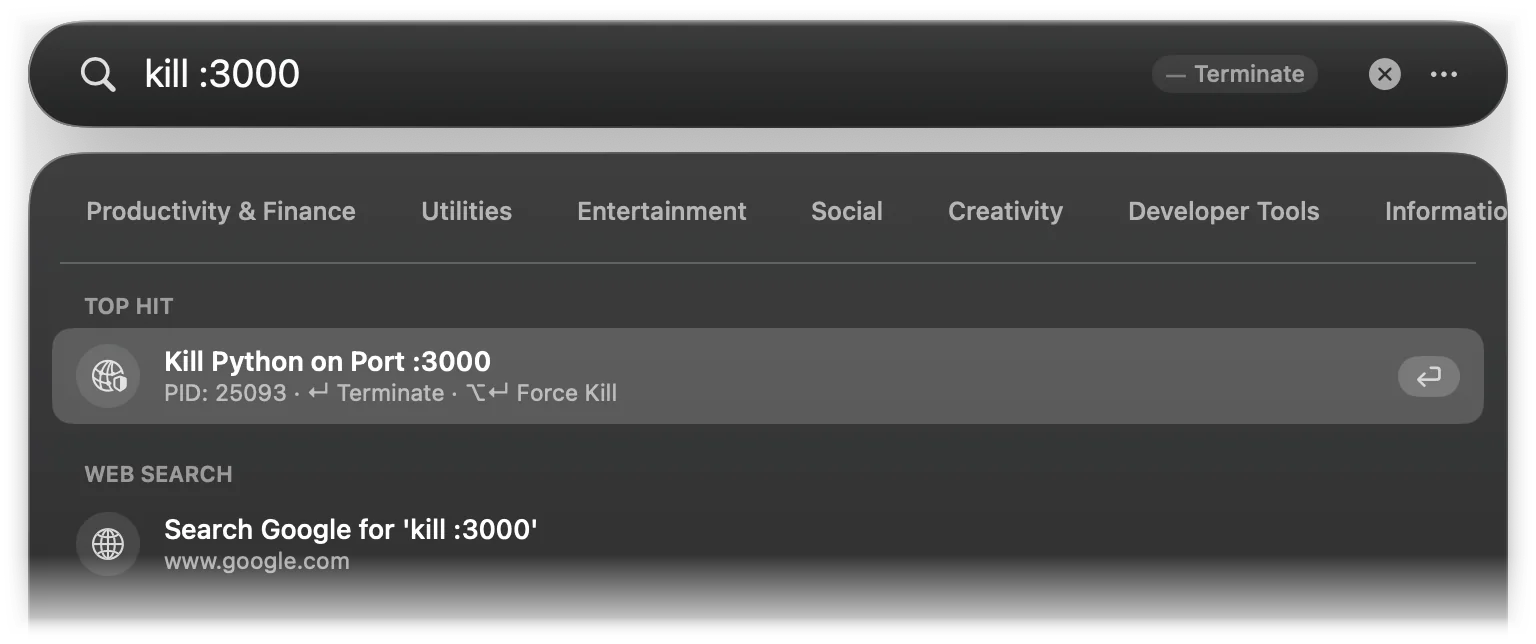
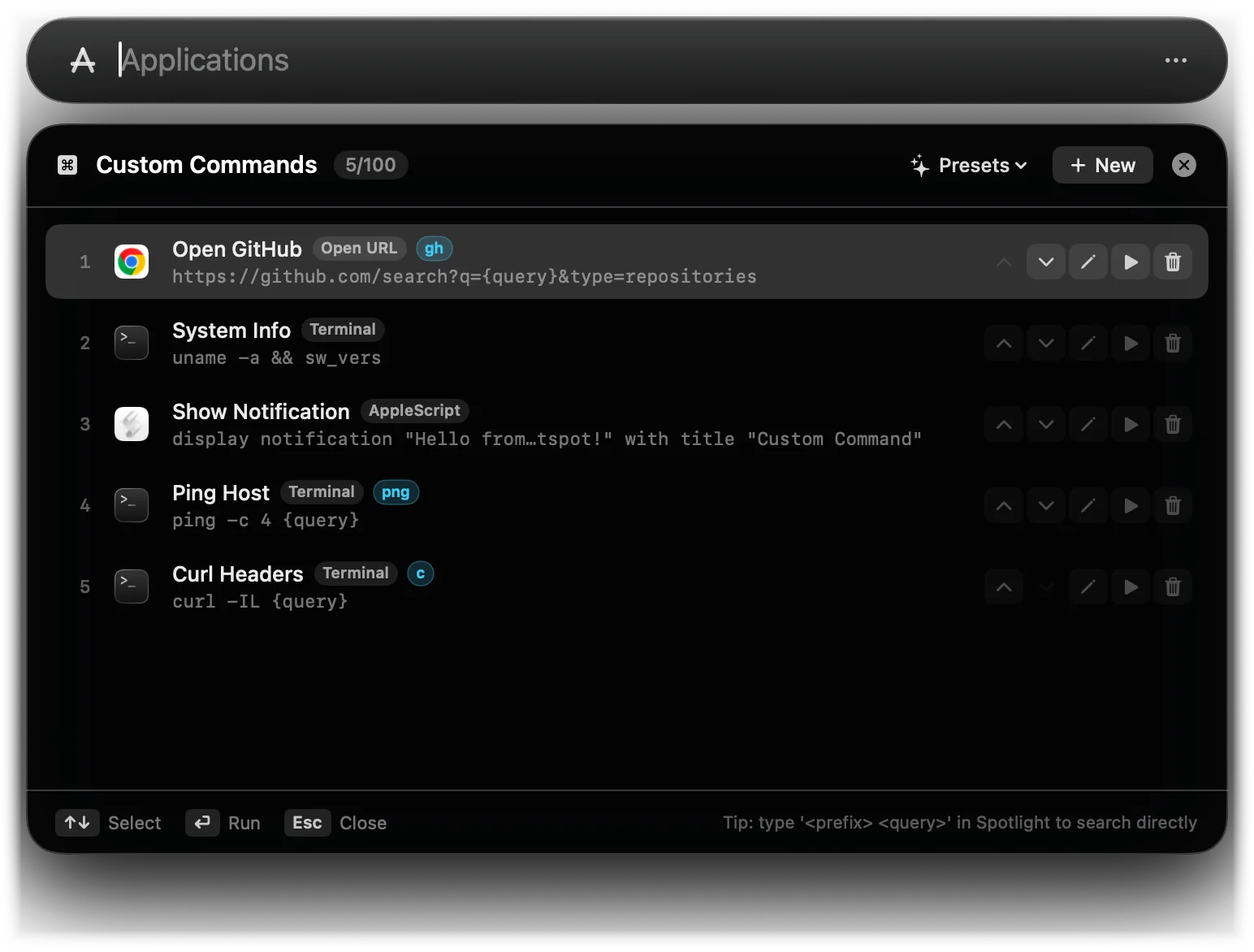
Why no file index
Spotlight indexes every file on the disk in the background. On a machine full of node_modules, .git folders and build output, its indexers (mds, mdworker) can keep the CPU busy after every npm install or git checkout, the hidden index in /.Spotlight-V100 can grow to tens of gigabytes, and a damaged index can stop it from finding apps at all.
Lightspot takes the other route. It only looks at the places you launch things from, keeps them in memory, and searches them on every keystroke without a delay. While the panel is closed, the only recurring work is a check for clipboard changes, plus the daily update check.
The trade-off: Lightspot does not search document names or contents. If you rely on that, keep Spotlight’s indexing on and let Lightspot take over only the shortcut.
Keys to know
| Key | What it does |
|---|---|
| ⌘Space | Show or hide Lightspot (or ⌘⇧Space / ⌥Space) |
| ↵ | Open, run or copy the selected result |
| ⌘↵ | Open a project in your terminal; reveal an app in Finder |
| ⌥↵ | Open a project in Finder; reveal an app in Finder; force-kill a process |
| Tab / ⇧Tab | Next or previous app category |
| ⌘P / ⌘⇧P | Pin a history command / manage pinned commands |
| ⌘⇧C | Manage custom commands |
| ⌘Y or ⌘⇧H | Search history |
| Esc | Close an overlay, clear the query, then hide |
The full list is in Searching and the app grid.
Questions
Does Lightspot index my files?
No. Lightspot never crawls the disk. It reads a short list of known places: the application folders, the last 2 MB of your zsh history, the recent-project lists of your editors, and the bookmarks, recent history and open tabs of your default browser. It cannot find documents by name or content. The privacy page lists every file it reads.
Can I keep Apple Spotlight?
Yes. Choose Keep Spotlight when Lightspot asks on first launch, and give Lightspot ⌥Space or ⌘⇧Space from the Shortcut menu, since only one app can own ⌘Space. You can also turn off only Spotlight’s shortcut and keep its file index, if you still search documents with it. See Turning off Apple Spotlight.
Which macOS versions does Lightspot support?
macOS 13 Ventura or later. The release build is set up as a universal app for Apple silicon and Intel Macs.
Does Lightspot connect to the internet?
For two things. Once a day it asks the GitHub API whether a new release exists, which you can turn off with Automatically Check for Updates in the menu. And when you ask for your public IP address (by typing ip or pressing ↵ on the IP Address row), it asks api.ipify.org. Web searches and links open in your browser. There is no analytics and no account. Details on the privacy page.
How do I update Lightspot?
Lightspot checks for a new release once a day and offers to install it; choose Check for Updates… in the menu to check now. Running the install command again also updates it. See Updates.
How do I uninstall Lightspot?
Run curl -fsSL https://raw.githubusercontent.com/openhoangnc/mac-lightspot/main/uninstall.sh | bash. It removes the app and its settings and turns Apple Spotlight back on if you had turned it off; re-enabling indexing asks for your password. See Uninstalling.
Is Lightspot free?
Yes. Lightspot is free to download and the source code is on GitHub.
The guide
- Install, update and uninstall The one-line installer, what it does step by step, first launch, automatic updates, building from source and removing Lightspot.
- Searching and the app grid Opening the panel, the categorised app grid, result sections, how results are ranked and every keyboard shortcut.
- Calculator and conversions Math expressions, units, temperatures, data sizes, 30 currencies and number bases, typed straight into the search field.
- Developer tools UUIDs, Base64, URL encoding, hashes, JWT and JSON, timestamps, colours, the process and port killer, and the hardware readout.
- Terminal history and projects Search and pin zsh history, open recent VS Code, Cursor, Zed, JetBrains and Sublime projects, pick one of seven terminals, sudo with Touch ID.
- Custom commands, web search and snippets Your own URL, Terminal, shell and AppleScript commands with prefixes and {query} arguments, search prefixes such as gh and npm, and text snippets.
- Browser, clipboard and system Open tabs, bookmarks and history of your default browser, clipboard history, 35 System Settings panes and 19 quick actions.
- Turning off Apple Spotlight Free ⌘Space and stop Spotlight’s background indexing from the menu bar, and how to restore everything later.
- Menu bar and settings Every menu item, the shortcut, search engine, browser history and terminal choices, update checks, and exporting settings to another Mac.
- Privacy Which files Lightspot reads, what it stores, the two network requests it makes and when, and the commands it runs.
- How Lightspot works The source layout, the synchronous search pipeline, the rule that keeps typing fast, one copy at a time, the updater, and how the app is built and tested.
Found a bug or have an idea? Open an issue on GitHub.