Browser, clipboard and system
Lightspot also finds the web pages you have open or saved, text you copied a minute ago, the System Settings pane you are looking for, and 19 everyday actions like locking the screen or emptying the Trash.
Lightspot guide
Browser tabs, bookmarks and history
Type two or more letters of a page title or address. Matching pages appear under Browser History & Bookmarks, up to six, and ↵ opens the page in your browser. Each row says whether it is an Open Tab, a Bookmark or from History; when a page is all three, the open tab wins.
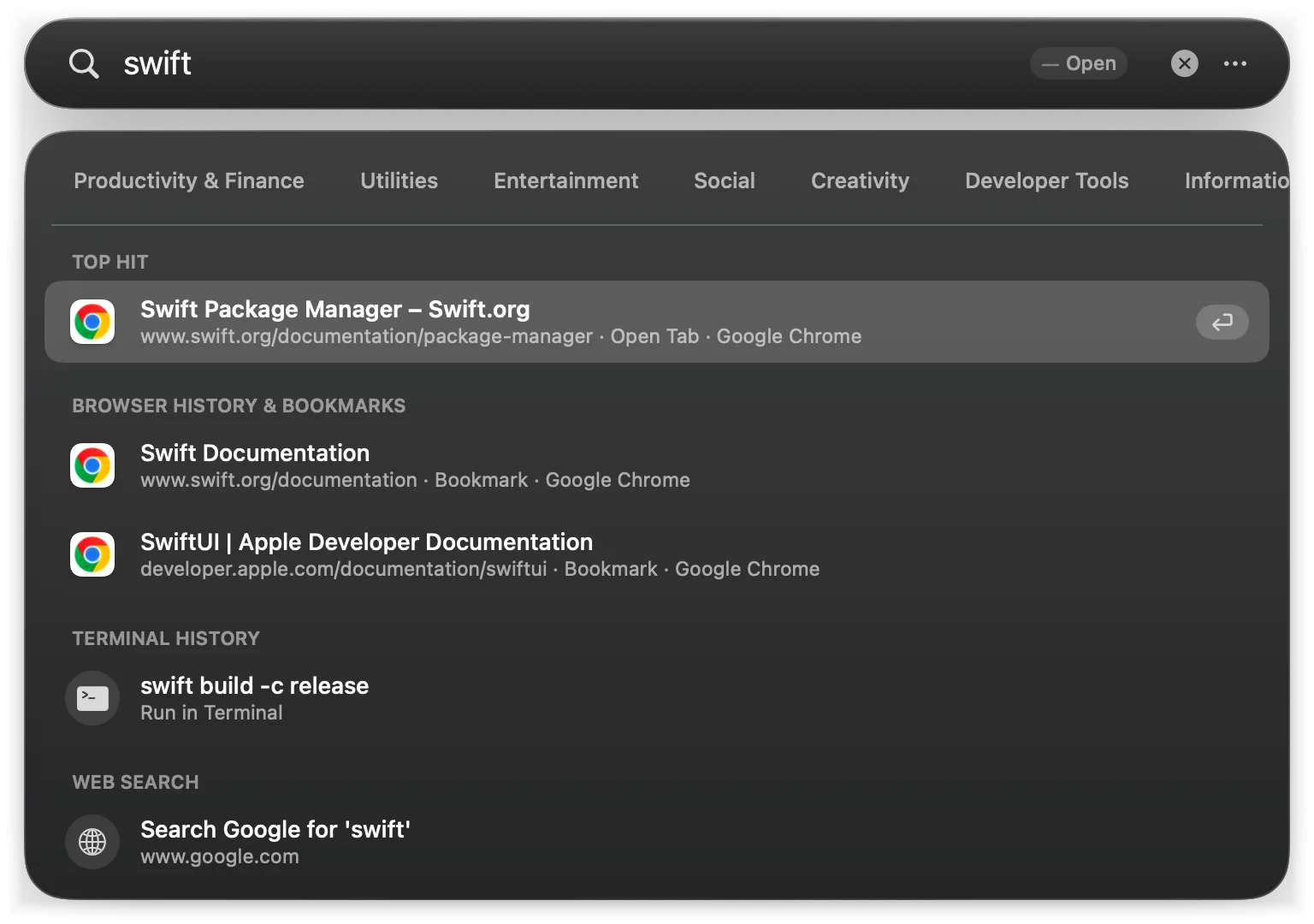
Lightspot reads only your default browser (the one macOS opens links with) and only its default profile:
| Browser | Bookmarks | History |
|---|---|---|
| Google Chrome | …/Google/Chrome/Default/Bookmarks | …/Google/Chrome/Default/History |
| Brave | …/BraveSoftware/Brave-Browser/Default/Bookmarks | …/BraveSoftware/Brave-Browser/Default/History |
| Microsoft Edge | …/Microsoft Edge/Default/Bookmarks | …/Microsoft Edge/Default/History |
| Arc | …/Arc/StorableSidebar.json | …/Arc/User Data/Default/History |
| Safari | ~/Library/Safari/Bookmarks.plist | ~/Library/Safari/History.db |
| Firefox | Newest backup in Profiles/…/bookmarkbackups | Profiles/…/places.sqlite |
Paths starting with … are inside ~/Library/Application Support. With another default browser, Lightspot shows no bookmarks or history.
- History covers the last 7 days by default, up to 1,500 pages. Change it to 3 days or turn it off in the menu: Browser History. The database is opened read-only, in place.
- Open tabs are asked from the browser through AppleScript, only while it is running, so macOS asks once whether Lightspot may control it.
- Tabs are refreshed when they are older than five seconds, bookmarks every two seconds at most (only when the file changed), and history every ten seconds, all in the background so typing never waits for them.
Clipboard history
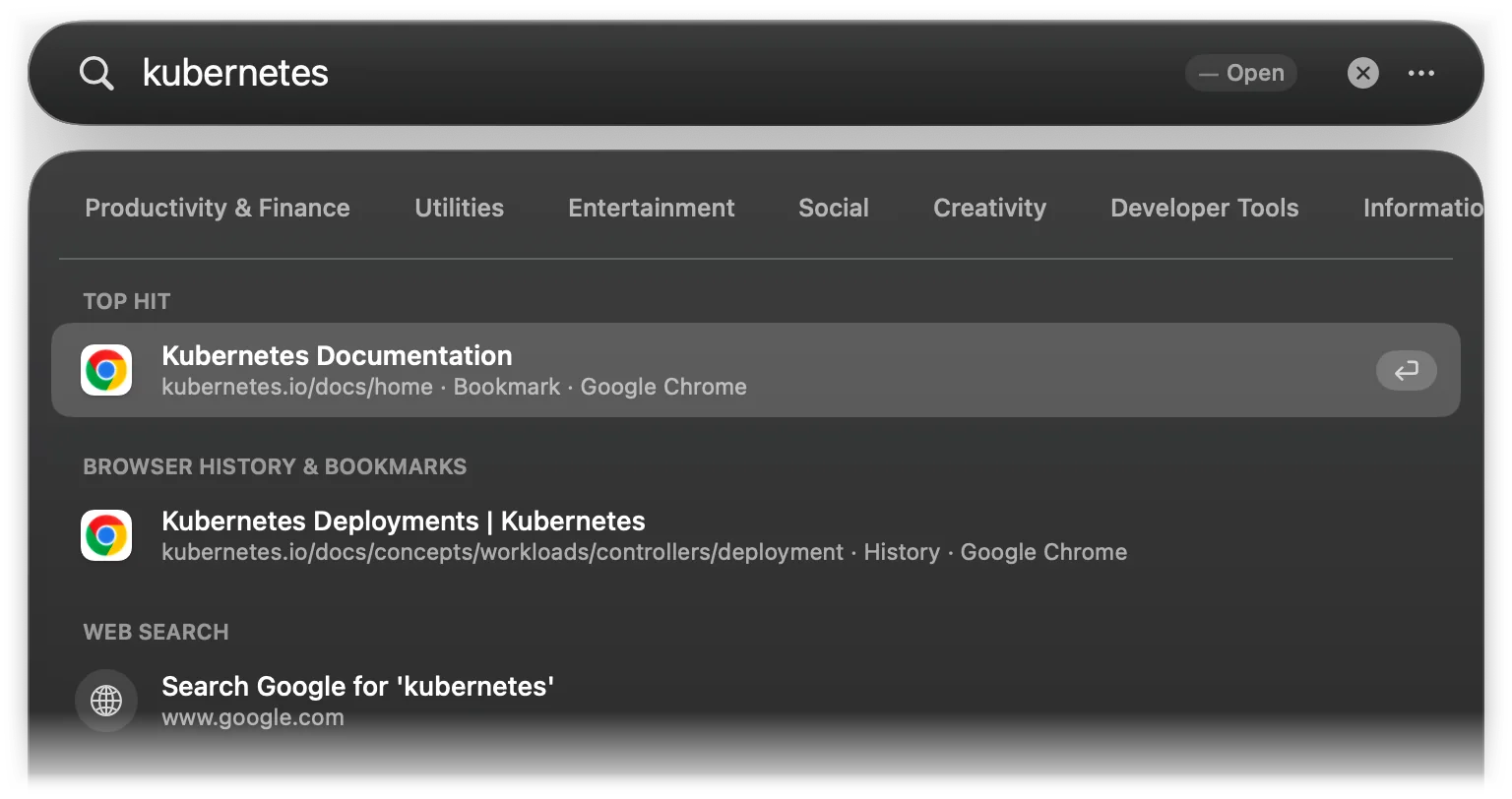
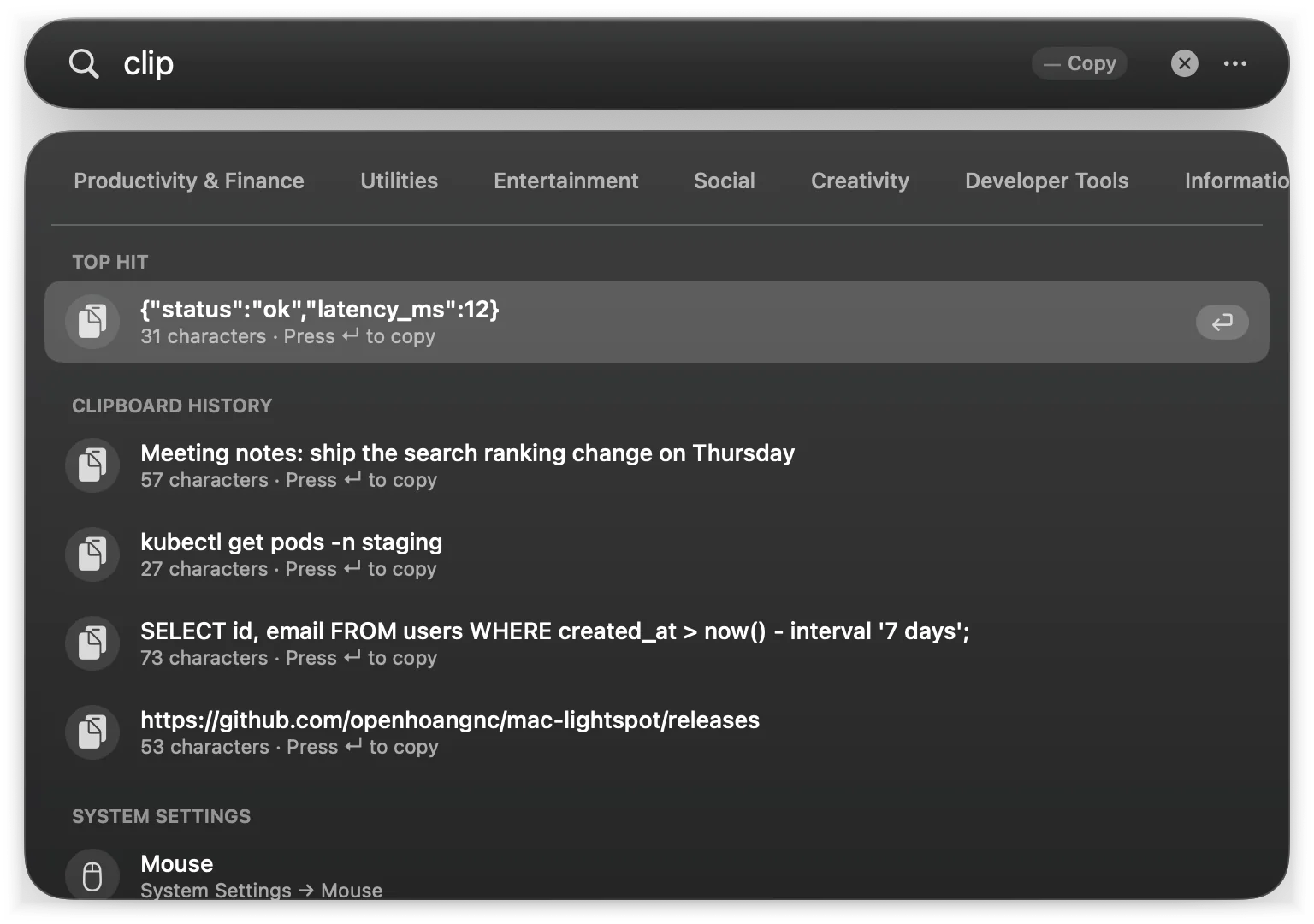
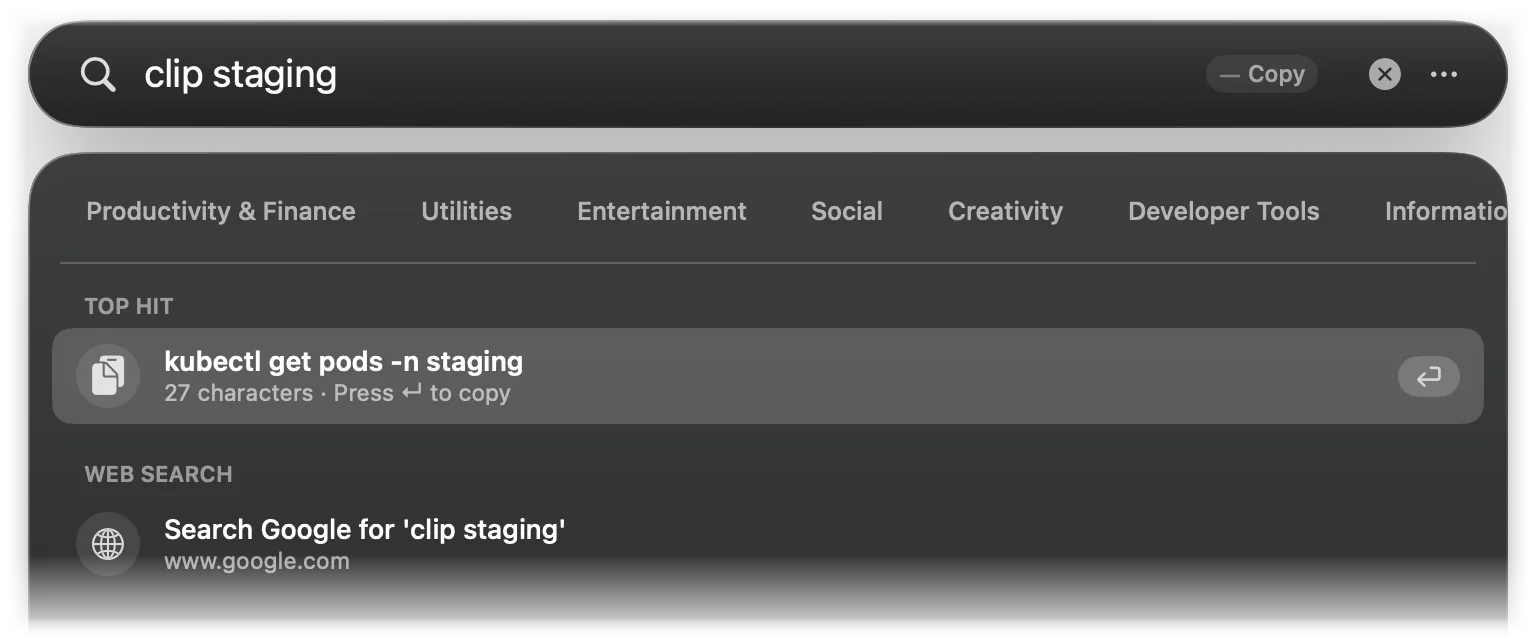
While Lightspot runs, it remembers the last 50 texts you copied. Type clip (or clipboard) to see the eight most recent, or clip followed by a word to search them; ↵ copies the entry again. Entries also show up for normal queries when they contain the text you typed.
- The history lives only in memory: it is never written to a file, and quitting Lightspot or choosing Clear Clipboard History in the menu empties it. Copying an entry back is not recorded in search history either.
- Only text is kept, not images or files. Copying the same text again moves it to the top.
- Copies marked as concealed by password managers are skipped: the pasteboard types
org.nspasteboard.ConcealedType,com.agilebits.onepasswordand those of a few clipboard and snippet tools.
System Settings
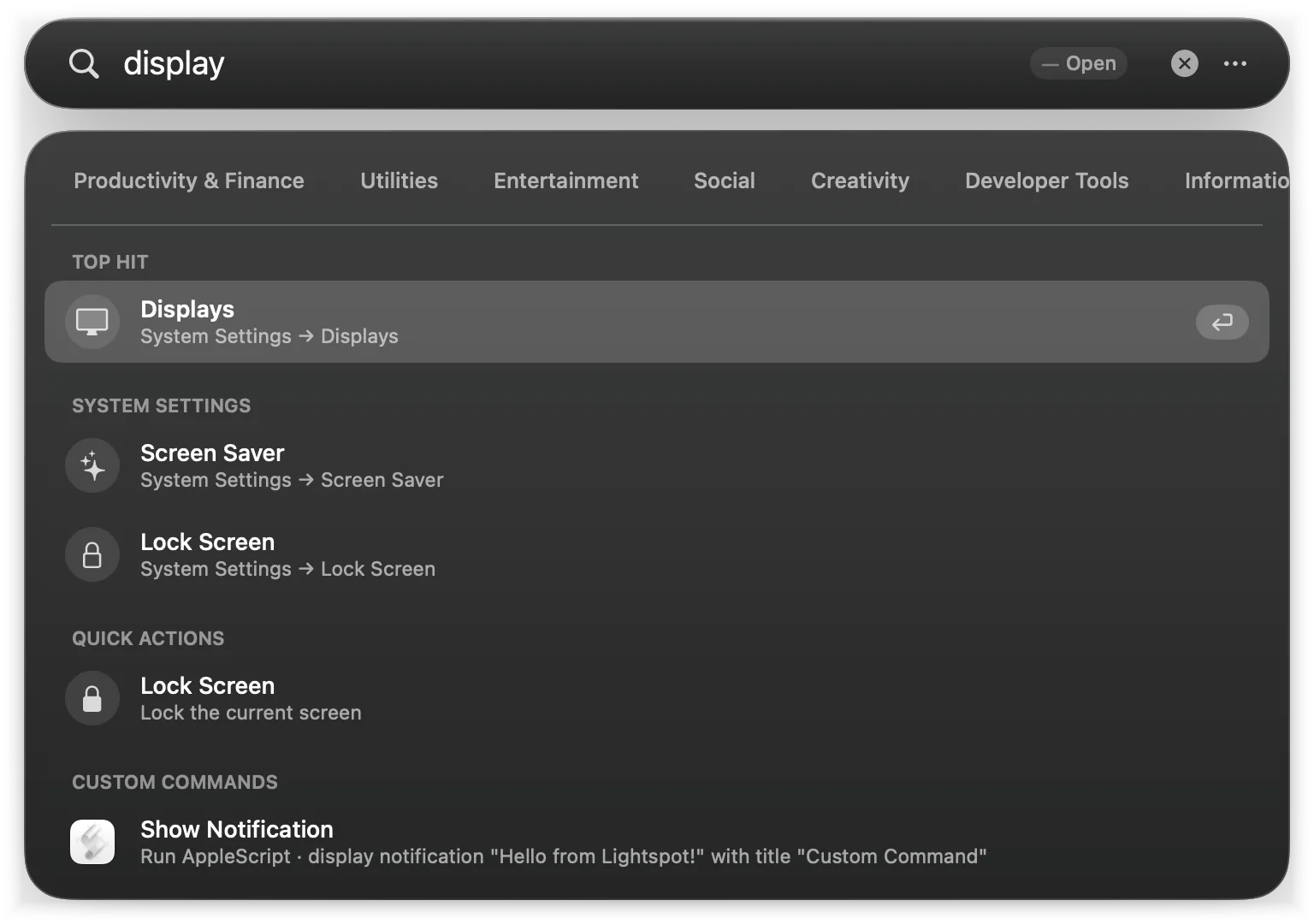
Lightspot opens 35 System Settings panes directly. Search by the pane name or by a related word: wifi, airpods, dark mode, filevault…
| Pane | Also found by |
|---|---|
| Wi-Fi | wifi, wireless, network, ssid, hotspot |
| Bluetooth | bt, airpods, headphones, pair |
| Network | ethernet, vpn, dns, proxy, firewall |
| Notifications | alerts, badges, banners, dnd |
| Sound | audio, volume, output, microphone |
| Focus | do not disturb, dnd, work, personal |
| Screen Time | downtime, app limits, parental controls |
| General | about, airdrop, language, region |
| Appearance | dark mode, light mode, accent color |
| Accessibility | voiceover, zoom, captions, contrast |
| Control Center | menu bar, status bar, battery percent |
| Siri | voice, dictation, apple intelligence |
| Spotlight | search, indexing, privacy |
| Privacy & Security | location, camera, filevault, gatekeeper |
| Desktop & Dock | dock, stage manager, hot corners, widgets |
| Displays | monitors, resolution, brightness, night shift |
| Wallpaper | background, desktop picture |
| Screen Saver | screensaver, aerial |
| Battery | power, energy, low power mode |
| Lock Screen | password required, display turn off |
| Touch ID | fingerprint, unlock, biometrics |
| Users & Groups | accounts, admin, guest user, login items |
| Passwords | keychain, autofill, passkeys, 2fa |
| Internet Accounts | icloud, google, mail, exchange |
| Keyboard | shortcuts, text replacement, input sources |
| Trackpad | gestures, tap to click, natural scrolling |
| Mouse | tracking speed, secondary click |
| Printers & Scanners | print, scan, airprint |
| Software Update | macos update, upgrade |
| Storage | disk, ssd, free space, manage storage |
| Date & Time | clock, timezone, 24-hour |
| Sharing | file sharing, screen sharing, remote login |
| Time Machine | backup, restore, snapshots |
| Startup Disk | boot, boot drive, target disk mode |
| Transfer or Reset | erase all content, factory reset, migration |
Quick actions
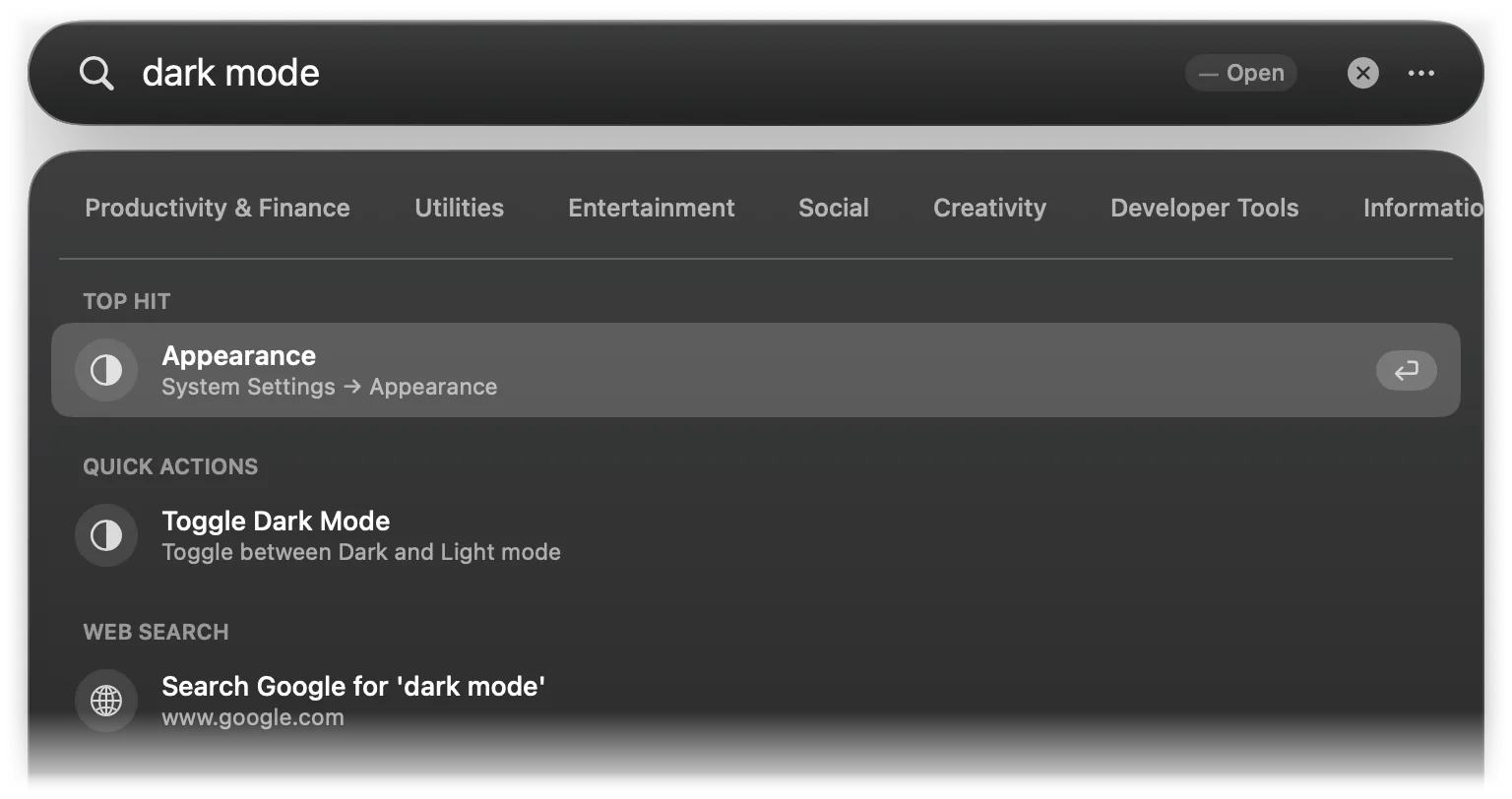
Quick actions are built-in commands, found by name or by the words in the second column. ↵ runs them. The ones marked admin ask for Touch ID or your password; see sudo with Touch ID.
| Action | Found by | What it does |
|---|---|---|
| Lock Screen | lock, screen | Locks the screen (⌃⌘Q through System Events) |
| Sleep | sleep, suspend | pmset sleepnow |
| Restart | restart, reboot | Asks System Events to restart |
| Shut Down | shutdown, power off | Asks System Events to shut down |
| Empty Trash | trash, bin | Asks Finder to empty the Trash |
| Toggle Dark Mode | dark mode, light mode, theme | Switches between Dark and Light |
| Mute Audio | mute, volume, sound | Mutes the output |
| Unmute Audio | unmute, volume | Unmutes the output |
| Take Screenshot | screenshot, capture, snip | screencapture -ui |
| Activity Monitor | task manager, cpu, processes | Opens Activity Monitor |
| Force Quit | force quit, kill | Opens the Force Quit Applications window |
| Flush DNS Cache | flush dns, dns | dscacheutil -flushcache; killall -HUP mDNSResponder (admin) |
| Purge Inactive Memory | purge, free ram | purge (admin) |
| Show Desktop | desktop, hide windows | Hides every app except Finder |
| Open Downloads | downloads, dl | Opens ~/Downloads |
| New Finder Window | finder window, browse | Opens a Finder window |
| IP Address | ip, my ip, public ip | Shows and copies your IP addresses |
| Terminal in Finder Folder | terminal here, term here | Opens your terminal in the Finder folder |
| Toggle Touch ID for Sudo | touch id, sudo, pam | Turns Touch ID for sudo on or off (admin) |
Several actions work through AppleScript, so macOS asks once whether Lightspot may control System Events or Finder. The hardware readout and the process killer also appear in this section.