Menu bar and settings
Lightspot has no settings window. Everything is in the menu of the magnifying-glass icon in the menu bar, and in the same menu behind the ⋯ button of the search field.
Lightspot guide
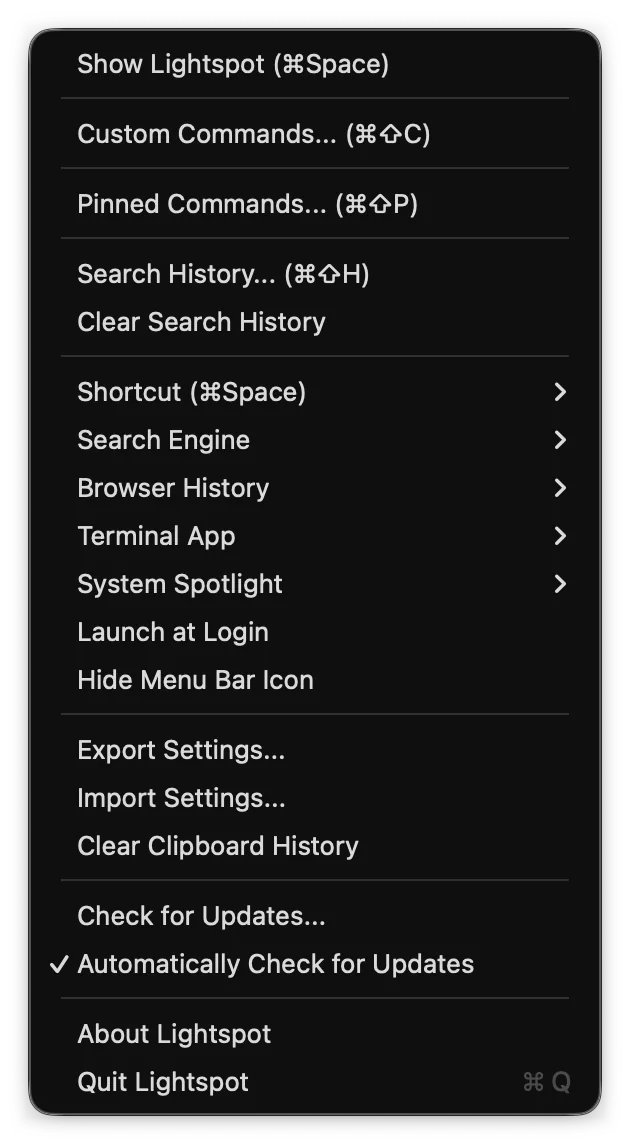
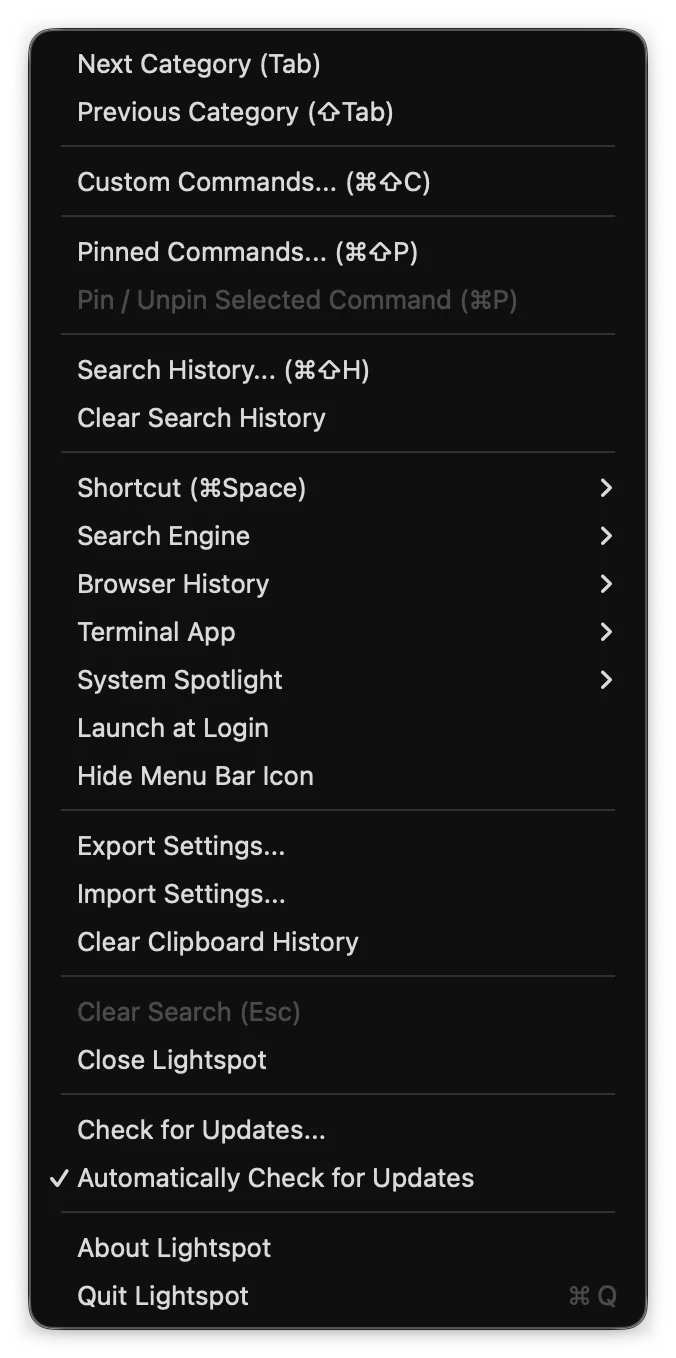
Menu items
| Item | What it does |
|---|---|
| Show Lightspot (⌘Space) | Opens the search bar. Shows your current shortcut. Menu bar only. |
| Next / Previous Category (Tab / ⇧Tab) | Switches the app grid category. ⋯ menu only. |
| Custom Commands… (⌘⇧C) | Opens the custom commands manager. |
| Pinned Commands… (⌘⇧P) | Opens the pinned commands manager. |
| Pin / Unpin Selected Command (⌘P) | Pins the selected history command. ⋯ menu only; greyed out when nothing pinnable is selected. |
| Search History… (⌘⇧H) | Opens the search history. |
| Clear Search History | Deletes the history and everything Lightspot learned from it. |
| Shortcut | The global shortcut. |
| Search Engine | The engine for the Web Search row. |
| Browser History | Disabled, Last 3 Days or Last 7 Days (default) of browser history. |
| Terminal App | The terminal used to run commands and open folders. |
| System Spotlight | Turns Apple Spotlight off or on. |
| Launch at Login | Starts Lightspot when you log in, through macOS’s login items. Turned on at first launch. |
| Hide / Show Menu Bar Icon | Hides the magnifying glass. Use the ⋯ menu in the search field to show it again. |
| Export Settings… / Import Settings… | Back up or restore your settings. |
| Clear Clipboard History | Empties the in-memory clipboard history. |
| Clear Search (Esc), Close Lightspot | ⋯ menu only. |
| Update to x.y.z… | Appears when a newer version was found. Installs it; see Updates. |
| Check for Updates… | Asks GitHub for the latest release now, and tells you if you are up to date. |
| Automatically Check for Updates | The daily check, on by default. Untick it and Lightspot only checks when you ask. |
| About Lightspot | Version (and a newer one if available), current shortcut and the state of Apple Spotlight’s shortcut, process and indexing. |
| Quit Lightspot (⌘Q) | Quits. Launch it again from Applications. |
Shortcut
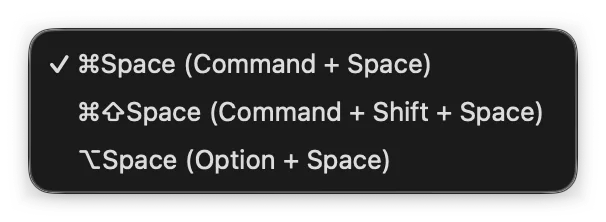
Choose ⌘Space (default), ⌘⇧Space or ⌥Space. The new shortcut works at once, in every app. Lightspot registers it as a global hot key, which needs no Accessibility permission. Picking ⌘Space while Apple Spotlight still uses it offers to free it, and if another app holds the shortcut when Lightspot starts, Lightspot tells you; see When ⌘Space is taken.
Search engine
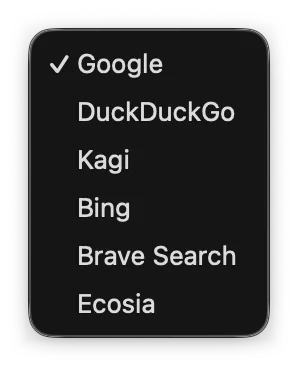
Google, DuckDuckGo, Kagi, Bing, Brave Search or Ecosia. This only changes the last Web Search row; the search prefixes always go to their own sites.
Export and import
Export Settings… saves a JSON file, named Lightspot-Settings-2026-10-16.json by default, and reports how many custom and pinned commands it contains. Import Settings… reads such a file, shows a summary and asks before it replaces your current settings; nothing is merged.
| In the file | Not in the file |
|---|---|
| Shortcut, Launch at Login, menu bar icon, browser history days, automatic update checks, custom commands with their icons, pinned commands, search history with its ranking statistics, recent apps | Snippets, terminal app, search engine, clipboard history |
Before writing the file, Lightspot replaces your home folder (/Users/you) with ~ in custom commands, pinned commands and search history, so the same file works on a Mac with a different user name; ~ is expanded again when a path is opened. Files from a newer Lightspot with a higher version are refused, and imported history is cleaned the same way as Lightspot’s own (see what Lightspot stores). A shortened example:
{
  "app" : "com.lightspot.app",
  "customCommands" : [
    {
      "iconSource" : "runner",
      "id" : "5AD4742B-E829-415A-A5B8-603FC8E56D4F",
      "keywords" : [ "github", "git", "repo", "code" ],
      "name" : "Open GitHub",
      "prefix" : "gh",
      "target" : "https://github.com/search?q={query}&type=repositories",
      "type" : "url"
    }
  ],
  "exportedAt" : "2026-10-16T08:00:00Z",
  "pinnedCommands" : [ "docker compose up -d", "npm run dev" ],
  "preferences" : {
    "autoStartEnabled" : true,
    "autoUpdateEnabled" : true,
    "browserHistoryDays" : 7,
    "hideMenuBarIcon" : false,
    "hotkeyOption" : "cmd_space"
  },
  "recentAppBundleIDs" : [ "com.apple.Terminal", "com.microsoft.VSCode" ],
  "searchHistory" : { "entries" : [ … ], "itemStats" : { … } },
  "version" : 1
}
The export contains your search history: what you searched for and which apps, pages and projects you opened. Look through the file before sharing it.
Where settings are stored
Everything is in Lightspot’s preferences (defaults read com.lightspot.app), under these keys, plus a lock file in ~/Library/Application Support/Lightspot that keeps a second copy from starting. The uninstaller deletes them all.
| Key | Holds |
|---|---|
lightspot_hotkey_option | Shortcut: cmd_space, cmd_shift_space or option_space |
lightspot_search_engine | Web search engine |
lightspot_browser_history_days | Browser history: 0, 3 or 7 days |
lightspot_terminal_app | Terminal app |
lightspot_auto_start_enabled | Launch at Login |
lightspot_hide_menubar_icon | Hide Menu Bar Icon |
lightspot_first_run_completed | Whether the first-run prompt was shown |
lightspot_spotlight_state | Last known Apple Spotlight state, for the menu |
lightspot_custom_commands | Custom commands (JSON) |
lightspot_pinned_commands | Pinned commands |
lightspot_snippets | Text snippets (JSON) |
lightspot_search_history | Search history and ranking statistics (JSON) |
lightspot_recent_app_bundle_ids | Up to 30 apps you opened through Lightspot |
lightspot_auto_update_enabled | Automatically Check for Updates (on by default) |
lightspot_last_update_check | When the last successful update check happened |
lightspot_skipped_version | A version you chose to skip |