Turning off Apple Spotlight
Lightspot can take ⌘Space from Spotlight, stop Spotlight’s background process and switch off its file indexing, one at a time or all at once, and put everything back the same way. All of it is in the menu bar icon under System Spotlight.
Lightspot guide
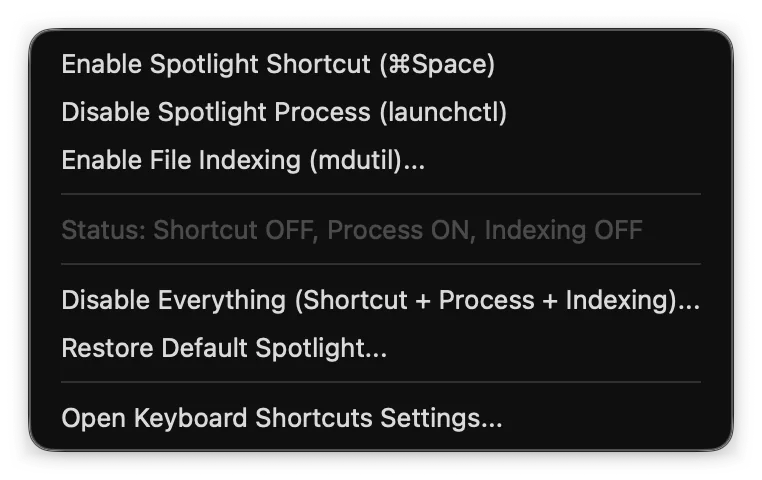
The System Spotlight menu has three switches, a status line such as Status: Shortcut OFF, Process ON, Indexing OFF, and two buttons that change all three at once. Each switch is labelled with what it will do next (Disable… or Enable…). Lightspot checks every change against the system afterwards and reports what macOS actually accepted.
The three switches
| Switch | What Lightspot does | Password |
|---|---|---|
| Spotlight Shortcut (⌘Space) | Turns off keyboard shortcuts 64 and 65 in com.apple.symbolichotkeys through macOS’s preferences service, then runs activateSettings -u so the change applies at once, without logging out | No |
| Spotlight Process (launchctl) | launchctl disable gui/<your user id>/com.apple.Spotlight, then killall Spotlight; enabling runs launchctl enable | No |
| File Indexing (mdutil) | mdutil -a -i off (or on) for all volumes | Yes |
- The shortcut is two entries in System Settings → Keyboard → Keyboard Shortcuts → Spotlight: Show Spotlight search (⌘Space, entry 64) and Show Finder search window (⌥⌘Space, entry 65). Lightspot changes both together, keeps any key combination you assigned to them, and creates the entries if macOS has not written them yet. Once the shortcut is off, Lightspot claims ⌘Space straight away.
- The process is the Spotlight menu bar and search window agent of your user account. Disabling it stops it from being started again.
- File indexing is what
mdsandmdworkerdo in the background. Turning it off stops new indexing on every volume. Finder’s search field and other apps that search through Spotlight depend on this index, so keep indexing on if you use them.
If macOS refuses a change, Lightspot says so instead of pretending it worked. For the shortcut, the message Could Not Change Spotlight Shortcut asks you to clear Show Spotlight search and Show Finder search window by hand in Keyboard Shortcuts Settings, then choose ⌘Space again in Lightspot.
Disable Everything and Restore
Disable Everything (Shortcut + Process + Indexing)… applies all three switches. macOS asks for your password once, for the indexing part. The summary lists the outcome of each part:
1. ⌘Space Shortcut: Disabled
2. Background Process: Disabled
3. File Indexing: Disabled

Lightspot is now your primary launcher!
If you cancel the password prompt, indexing is reported as Unchanged (Admin canceled); a part macOS refused shows as Unchanged (macOS refused) or Unchanged (launchctl refused), followed by what to do by hand. When the shortcut itself could not be changed, the title reads Spotlight Partially Disabled.
Restore Default Spotlight… turns the shortcut back on, re-enables the process with launchctl enable and turns indexing back on (again with your password), and reports each part the same way under Spotlight Restored or Spotlight Partially Restored. The uninstaller also turns Spotlight back on unless you tell it not to.
The same choice is offered once, on the first launch of Lightspot, as Disable Everything or Keep Spotlight (first launch).
How Lightspot knows the current state
It reads the two shortcut entries from macOS’s preferences (the shortcut counts as on if either is on), checks launchctl print-disabled for the process and mdutil -s / for indexing. Those checks take a few dozen milliseconds, so Lightspot runs them in the background when it starts, when you open the panel and when you open the menu, and shows the last known state in the meantime. If you change Spotlight in System Settings, the menu catches up the next time you open it.
When ⌘Space is taken
Only one app can own a key combination. If Lightspot cannot claim its shortcut when it starts, it tells you instead of silently doing nothing:
⌘Space Is Already Taken. macOS still has its own Spotlight shortcut registered, so Lightspot could not claim ⌘Space. Disable the system Spotlight shortcut to hand ⌘Space to Lightspot.
Disable System Spotlight Shortcut does that for you; Open Keyboard Shortcuts Settings takes you there to do it yourself; Later leaves things as they are. If another app holds the combination instead, the message asks you to quit that app or pick a different shortcut.
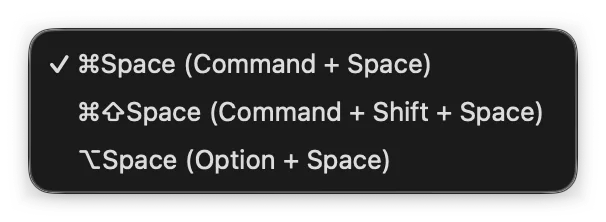
Choosing ⌘Space in Lightspot’s Shortcut menu while Spotlight’s shortcut is still on asks the same question (Using ⌘Space as Lightspot Shortcut). To keep both, give Lightspot another shortcut:
Open Keyboard Shortcuts Settings… at the bottom of the System Spotlight menu opens System Settings → Keyboard.