Install, update and uninstall Lightspot
One command installs or updates Lightspot. This page explains what that command does, what happens on first launch, how to build Lightspot yourself and how to remove it.
Lightspot guide
Requirements
- macOS 13 Ventura or later.
- An internet connection for the installer, which downloads the latest release from GitHub.
- No administrator password: the installer does not use
sudo.
Install
Open Terminal and run:
curl -fsSL https://raw.githubusercontent.com/openhoangnc/mac-lightspot/main/install.sh | bashLightspot installs into /Applications when your account can write there, and into ~/Applications otherwise. To always use ~/Applications, add -s -- --user:
curl -fsSL https://raw.githubusercontent.com/openhoangnc/mac-lightspot/main/install.sh | bash -s -- --userA successful install prints:
==========================================
  Lightspot Installer
==========================================
Target directory: /Applications
[1/3] Downloading latest release of Lightspot...
--> Downloaded Lightspot.zip from GitHub Release.
[2/3] Installing to /Applications/Lightspot.app...
🛑 Stopping existing Lightspot process...
🔏 Setting permissions and codesigning...
[3/3] Launching Lightspot...
==========================================
✅ Installation complete!
📍 Location: /Applications/Lightspot.app
⌨️ Hotkey: ⌘Space (Command + Space)
Lightspot then starts, a magnifying glass appears in the menu bar, and ⌘Space opens the search bar once Apple Spotlight no longer holds that shortcut (see first launch).
What the installer does
- Checks that it runs on macOS and picks the target folder.
- Downloads
Lightspot.zipfrom the latest GitHub release into a temporary folder and unzips it. (Run from a clone of the repository instead, it builds the app from source withbuild.sh.) - Quits any running Lightspot, waits up to three seconds, and force-quits it if it is still running. If it is not allowed to stop it, it says so; the new copy then asks the old one to quit.
- Replaces
Lightspot.appin the target folder with the new copy. - Removes the
com.apple.quarantineattribute and signs the app locally (codesign --sign -), so macOS opens it without a Gatekeeper warning. Lightspot is not notarized by Apple. - Opens the new Lightspot and deletes the temporary folder.
The script is short and readable: install.sh on GitHub. It sends nothing anywhere except the download request to GitHub.
First launch
On its very first start Lightspot does two things:
- It turns on Launch at Login, so it is there after a restart. You can turn this off in the menu bar menu.
- It offers to switch off Apple Spotlight, so ⌘Space opens Lightspot instead:
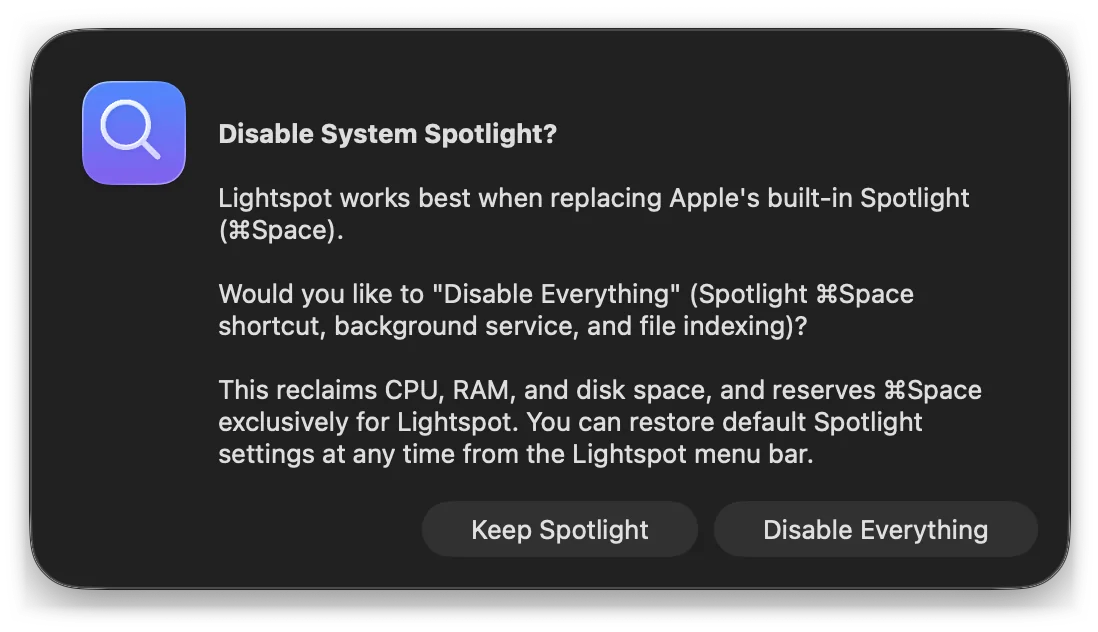
- Disable Everything turns off Spotlight’s ⌘Space and ⌥⌘Space shortcuts, its background process and its file indexing. macOS asks for your password for the indexing part. A second dialog then lists what changed and anything macOS refused. Everything can be restored later; see Turning off Apple Spotlight.
- Keep Spotlight changes nothing. Spotlight keeps ⌘Space, so Lightspot tells you that ⌘Space is already taken and offers to free it; or pick ⌥Space or ⌘⇧Space for Lightspot from the menu bar icon: Shortcut.
The dialog is skipped if Spotlight is already fully off. Lightspot never shows it again; the same actions stay available in the System Spotlight menu.
Lightspot has no Dock icon and no window of its own. It lives in the menu bar, and the search bar appears on the screen where your mouse pointer is. Opening Lightspot from Finder or Launchpad while it is already running shows the search bar instead of starting a second copy.
Installing by hand
If you prefer not to pipe a script into bash:
- Download
Lightspot.zipfrom the releases page and unzip it. - Move
Lightspot.appto/Applications. - Because the app is not notarized, remove the download quarantine before the first launch:
xattr -dr com.apple.quarantine /Applications/Lightspot.appUpdates
Lightspot checks GitHub for a new release once a day: five seconds after it starts, and when you open its menu, if the last successful check was more than 24 hours ago. When the check at launch finds a newer version, a dialog titled Lightspot x.y.z is available shows the version you are running, the download size and the start of the release notes; the menu also gains an Update to x.y.z… item. The dialog offers:
- Install and Relaunch downloads
Lightspot.zipfrom the GitHub release, checks that it contains Lightspot with the version the release names, replaces the app, removes the quarantine flag, signs it locally like the installer does, and reopens it. If the app’s folder is not writable by your account, macOS asks for Touch ID or your password. If the copy fails, the previous version is put back. - Release Notes opens the release on GitHub.
- Skip This Version stops the reminders for that version; it stays available from Check for Updates….
- Later closes the dialog; Update to x.y.z… stays in the menu.
Choose Check for Updates… in the menu to check right away, and untick Automatically Check for Updates to turn the daily check off; nothing is sent then. The check asks the GitHub API for the latest release; its user agent names only the app and its version. Details are on the privacy page. Like the installer, the updater trusts GitHub releases of the project: Lightspot is not notarized, so there is no Apple signature to verify.
You can also update by running the install command again. Your settings, custom commands and pinned commands stay either way. About Lightspot shows the version you have, and a newer one if it is available. A copy of Lightspot 1.2.0 or later quits by itself when a different build of Lightspot starts; an older copy that the installer cannot stop has to be quit from its menu bar icon.
Building from source
Lightspot is a Swift package with no dependencies. You need the Swift 6 toolchain, from Xcode or the Command Line Tools; an Xcode project is not required.
git clone https://github.com/openhoangnc/mac-lightspot.gitcd mac-lightspot| Command | What it does |
|---|---|
./build.sh or make build | Release build optimised for size, stripped, packaged as build/Lightspot.app and signed locally |
./run.sh or make run | Quits a running Lightspot, builds, and opens the new build |
./install.sh or make install | Builds from your checkout and installs it, like the one-line installer |
./uninstall.sh or make uninstall | Removes Lightspot (see below) |
make clean | Deletes build and .build |
Use build.sh rather than plain swift build: the bare binary has no app bundle and no Info.plist, so it does not run as a menu bar app. How the build and the tests work is described in How Lightspot works.
Uninstalling
Run:
curl -fsSL https://raw.githubusercontent.com/openhoangnc/mac-lightspot/main/uninstall.sh | bashThe uninstaller:
- Asks Lightspot to remove its Launch at Login item.
- Quits Lightspot, forcing it after three seconds if needed.
- Deletes
Lightspot.appfrom/Applicationsand~/Applications. - Deletes its settings (
defaults delete com.lightspot.appand~/Library/Preferences/com.lightspot.app.plist): custom commands, pinned commands, snippets, search history and preferences, and its folder in~/Library/Application Support/Lightspot. - Turns Apple Spotlight back on where it was turned off: the ⌘Space shortcut and the Spotlight process without a password, then file indexing, which needs
sudo. It asks before runningsudo mdutil -a -i on, and if it cannot ask, it prints that command for you to run.
Two options, added after bash -s --:
--dry-runprints every step without changing anything:
curl -fsSL https://raw.githubusercontent.com/openhoangnc/mac-lightspot/main/uninstall.sh | bash -s -- --dry-run--keep-spotlight-disabledleaves Apple Spotlight as it is.
Lightspot keeps no other files: clipboard history only ever lives in memory. To keep your custom commands, export your settings before uninstalling.
Version history
| Version | Released | Changes |
|---|---|---|
| 1.2.0 | 2026-10-16 | Automatic update check (daily, can be turned off) with one-click install. Turning off Spotlight now handles both ⌘Space and ⌥⌘Space, applies at once and reports what macOS refused; the uninstaller turns Spotlight back on. Only one copy of Lightspot runs at a time. The public IP is looked up only when you ask for it, and copied values, clipboard entries and kill actions are no longer saved in search history. clip alone lists clipboard history; 0xFF in dec, hash sha256 …, JWT headers, HSL colours and date → epoch work; ⌫ deletes search history entries. Kill by port lists only listening processes, names them, and never offers system processes; commands run properly in Ghostty, Kitty, WezTerm and Alacritty; more JetBrains IDEs and Android Studio. |
| 1.1.2 | 2026-10-16 | Search runs while an input method is still composing a word (underlined “marked text”), so Vietnamese, Japanese, Chinese and Korean input no longer waits for each word to be committed. |
| 1.1.1 | 2026-09-05 | The About dialog reads the version from the app bundle instead of a fixed “1.0.0”. |
| 1.1.0 | 2026-09-05 | First-run onboarding: Lightspot turns on Launch at Login and offers to disable Apple Spotlight. |
| 1.0.0 | 2026-09-05 | First public release. |