Custom commands, web search and snippets
Teach Lightspot your own shortcuts: a URL with your search text in it, a Terminal command, a background shell script or an AppleScript, each with an optional prefix. Built-in search prefixes and text snippets work the same way.
Lightspot guide
Custom commands
Press ⌘⇧C, or choose Custom Commands… in the menu, to open the manager. A new install comes with three commands: Open GitHub (prefix gh), System Info (uname -a && sw_vers in Terminal) and Show Notification (an AppleScript that shows a notification).
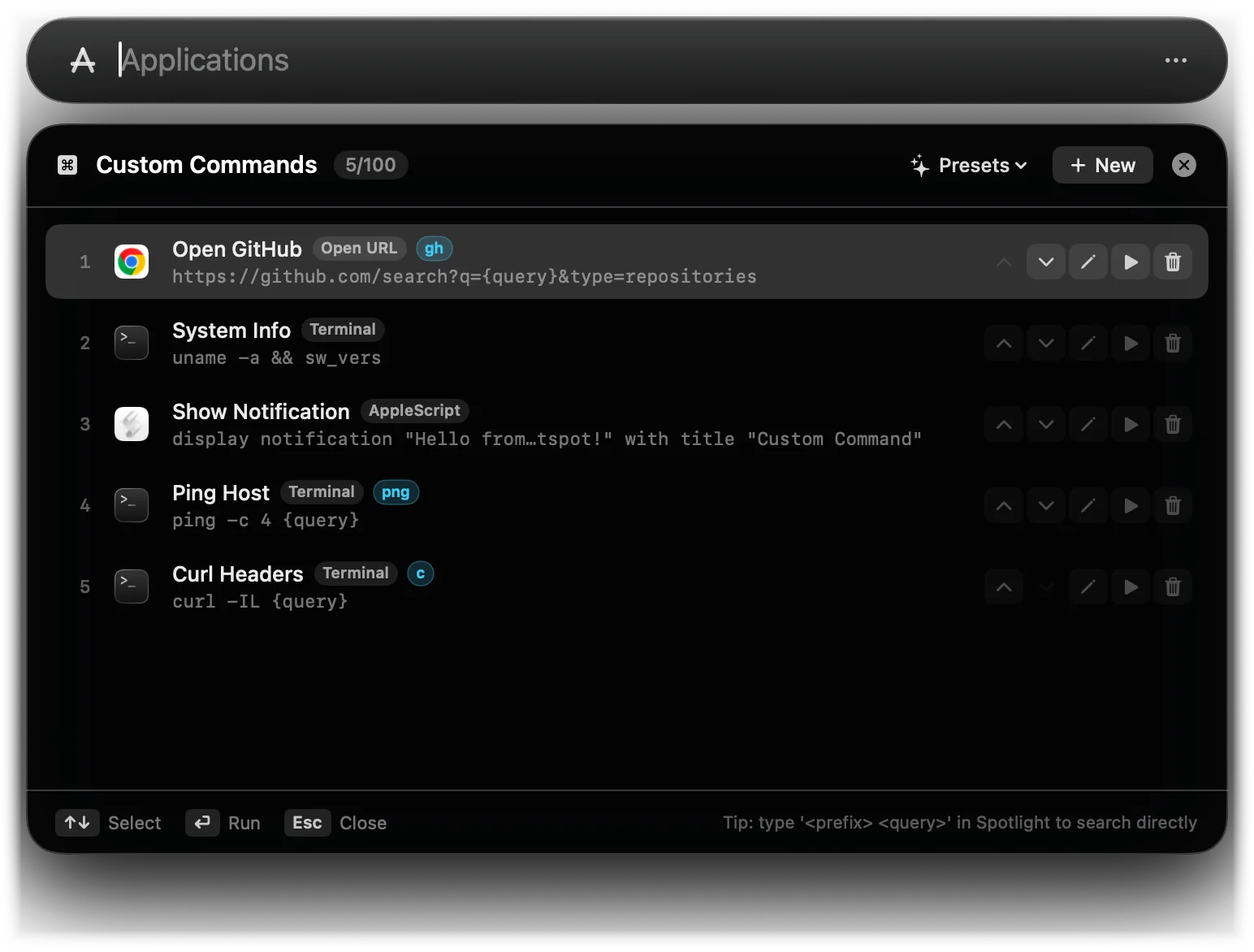
Each row shows the name, the runner, the prefix and the target, with buttons to move it, edit it, run it or delete it. New opens the editor, and Presets adds a ready-made command. You can keep up to 100 commands; new ones are added at the top.
Creating a command
The editor asks for:
- Command Type
- Open URL, Terminal, AppleScript or Shell Script (see the table below).
- Icon
- The runner’s icon (your default browser, your terminal or Script Editor), an image or app you choose with Choose File…, or the type’s symbol. Chosen images are scaled down to 128 pixels and stored inside the command, so they survive an export.
- Name
- What you search for and what the row shows, for example Open GitHub.
- Prefix Shortcut (optional)
- A word that starts the query, such as
gh,ytornpm. - Target
- The URL, Terminal command, AppleScript code or shell command to run.
- Keywords (optional, comma-separated)
- Extra words that should find the command.
| Type | How it runs |
|---|---|
| Open URL | Opens the URL in your default browser. A URL without :// gets https:// in front. |
| Terminal | Runs the command in your chosen terminal (Apple’s Terminal when Warp is chosen), where you see the output. |
| AppleScript | Runs the code with osascript, in the background. |
| Shell Script | Runs the command with /bin/sh -c in the background, with no window. A command containing sudo goes through Touch ID or the password dialog. |
Passing what you type
Put {query} (or %s, or %@) in the target where your text should go:
- URL: the text is URL-encoded. Without a placeholder, it is added as
?q=…(or&q=…). - Terminal and shell: the text is inserted exactly as typed, without quoting, so
ping -c 4 {query}becomesping -c 4 example.com. Without a placeholder it is added at the end after a space. Only use commands you would type yourself. - AppleScript: quotes and backslashes in the text are escaped. Without a placeholder, the text is not used.
- With nothing typed, the placeholders are removed.
Prefixes
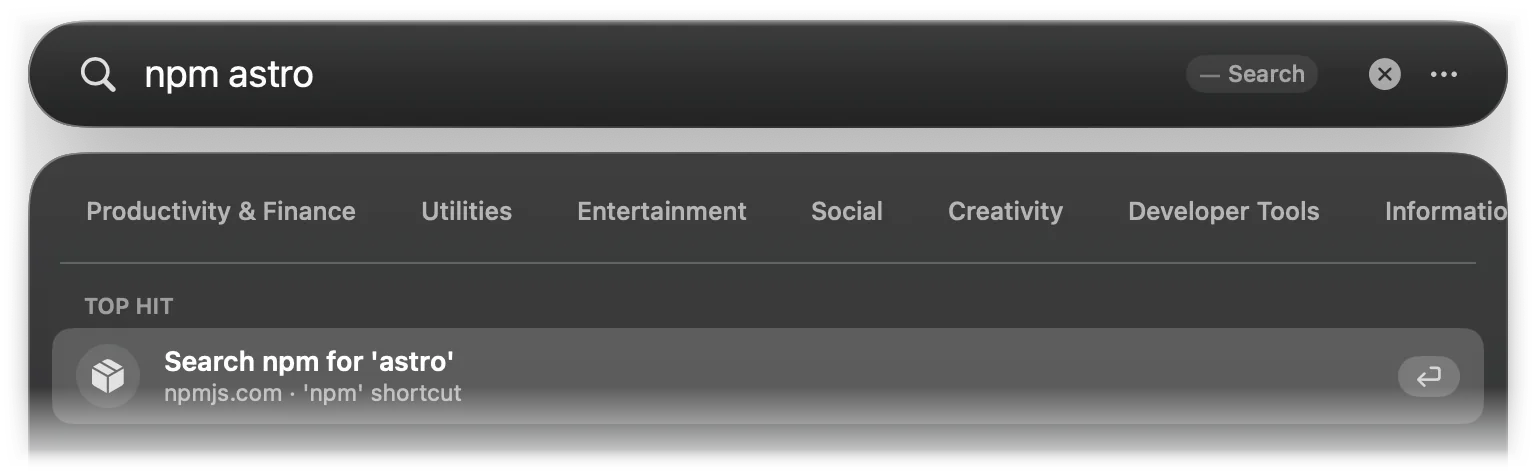
Type the prefix, a space and your text. The command becomes the Top Hit with your text filled in, and ↵ runs it:
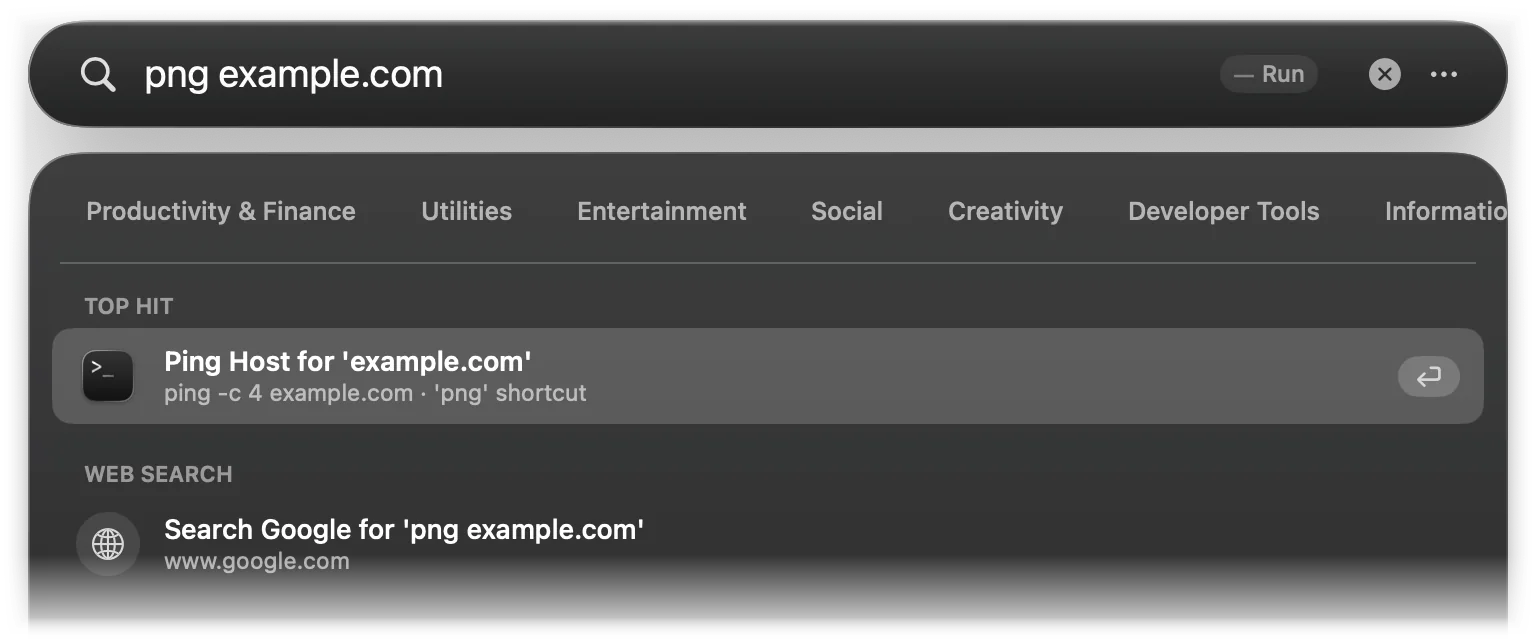
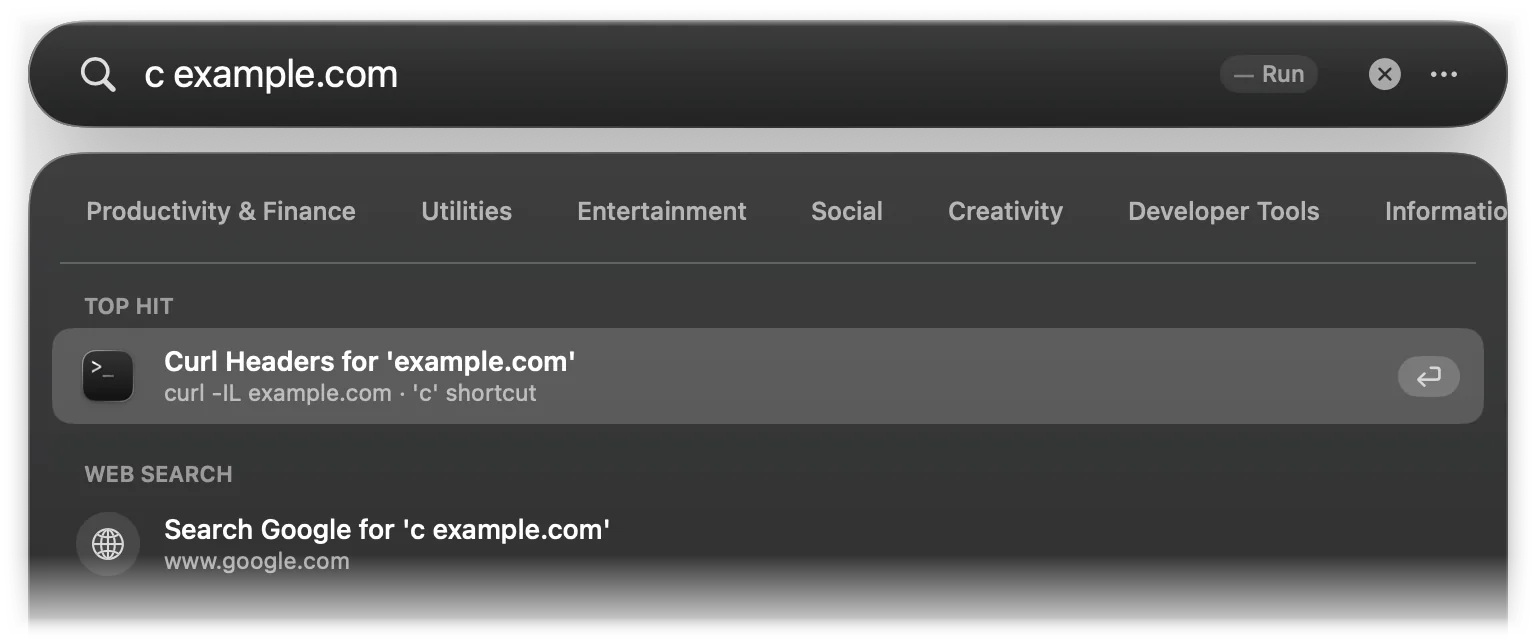
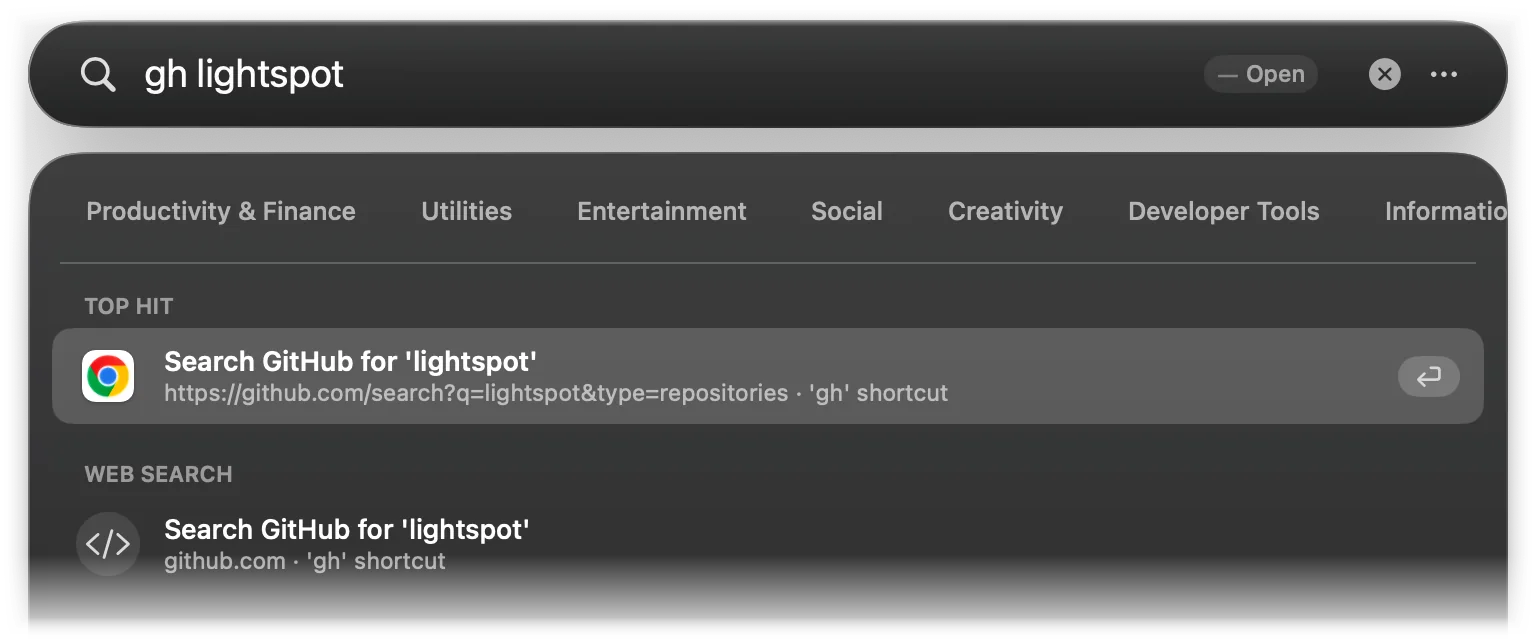
Typing only the prefix shows the command with its target. Without a prefix, a command is found by its name, its keywords or its target text, like any other result. A command whose name starts with “Open” is shown as “Search …” when used with a prefix, so Open GitHub reads Search GitHub for 'lightspot'.
Presets
Presets in the manager (and Fill from Preset in the editor) add these commands. When the list is empty, Load Default Presets adds the first three.
| Prefix | Name | Type | Target |
|---|---|---|---|
gh | GitHub | URL | https://github.com/search?q={query}&type=repositories |
g | URL | https://www.google.com/search?q={query} | |
yt | YouTube | URL | https://www.youtube.com/results?search_query={query} |
so | Stack Overflow | URL | https://stackoverflow.com/search?q={query} |
ddg | DuckDuckGo | URL | https://duckduckgo.com/?q={query} |
wiki | Wikipedia | URL | https://en.wikipedia.org/w/index.php?search={query} |
npm | npm | URL | https://www.npmjs.com/search?q={query} |
png | Ping Host | Terminal | ping -c 4 {query} |
c | Curl Headers | Terminal | curl -IL {query} |
Custom commands are saved with your settings and included when you export them, with your home folder written as ~ so the file works on another Mac.
Web search
Every query ends with a Web Search row, so ↵ on a query with no other results searches the web in your default browser.
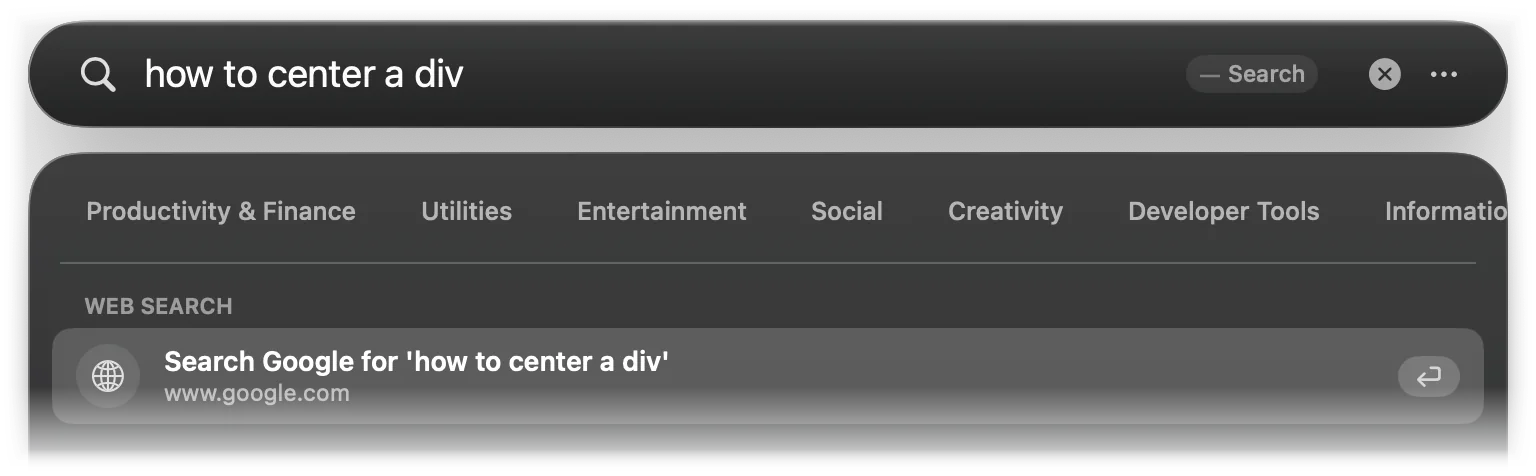
Choose the engine in the menu bar icon: Search Engine.
| Engine | URL |
|---|---|
| Google (default) | https://www.google.com/search?q=… |
| DuckDuckGo | https://duckduckgo.com/?q=… |
| Kagi | https://kagi.com/search?q=… |
| Bing | https://www.bing.com/search?q=… |
| Brave Search | https://search.brave.com/search?q=… |
| Ecosia | https://www.ecosia.org/search?q=… |
Search prefixes
These prefixes are built in, whatever engine you chose. Type the prefix, a space and your text:
| Prefix | Searches | Opens |
|---|---|---|
g | google.com/search | |
ddg | DuckDuckGo | duckduckgo.com |
gh | GitHub (repositories) | github.com/search |
yt | YouTube | youtube.com/results |
so | Stack Overflow | stackoverflow.com/search |
npm | npm | npmjs.com/search |
crates | crates.io | crates.io/search |
wiki | Wikipedia | en.wikipedia.org |
mdn | MDN Web Docs | developer.mozilla.org/en-US/search |
brew | Homebrew (opens the formula page) | formulae.brew.sh/formula/… |
A custom command with the same prefix appears too. With the default Open GitHub command, gh lightspot shows both, the custom command first:
Addresses
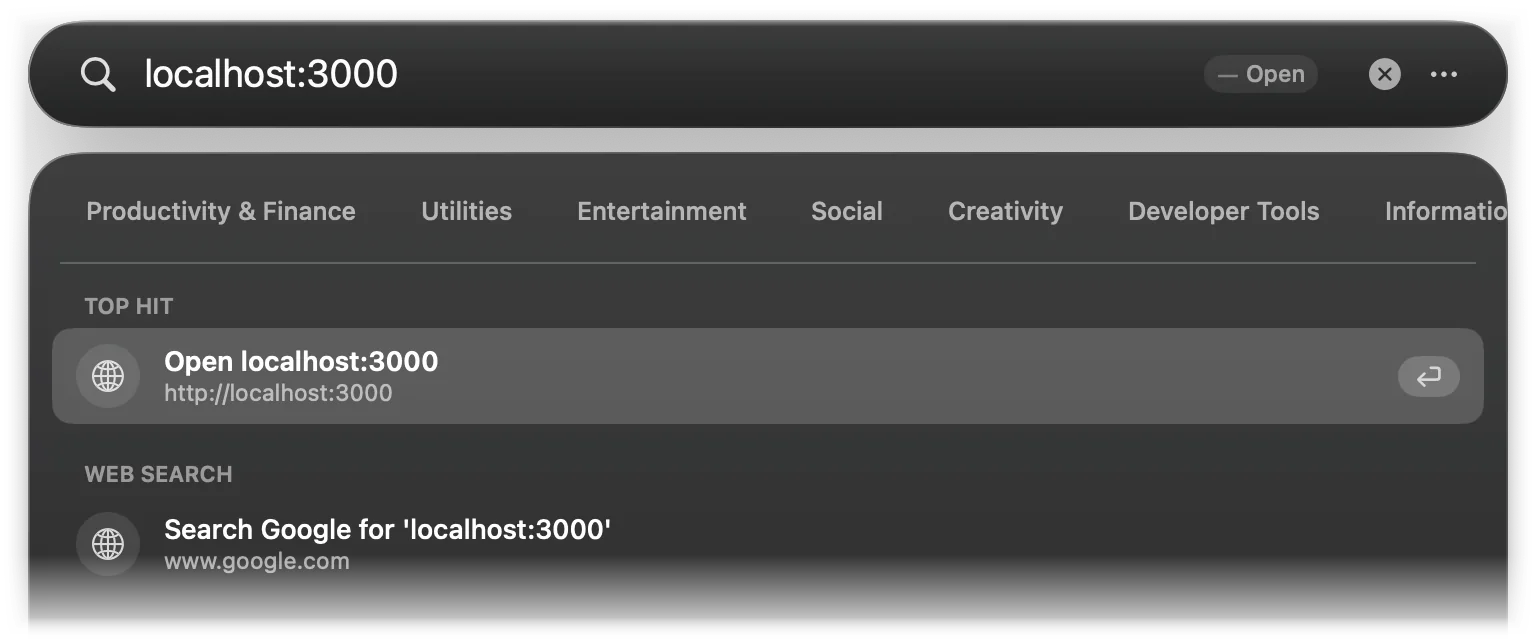
Type an address and Lightspot offers to open it directly: https://… links, localhost:3000, an IPv4 address with an optional port, or a domain such as example.com. Names that look like files (notes.txt, main.swift) are not treated as domains.
Text snippets
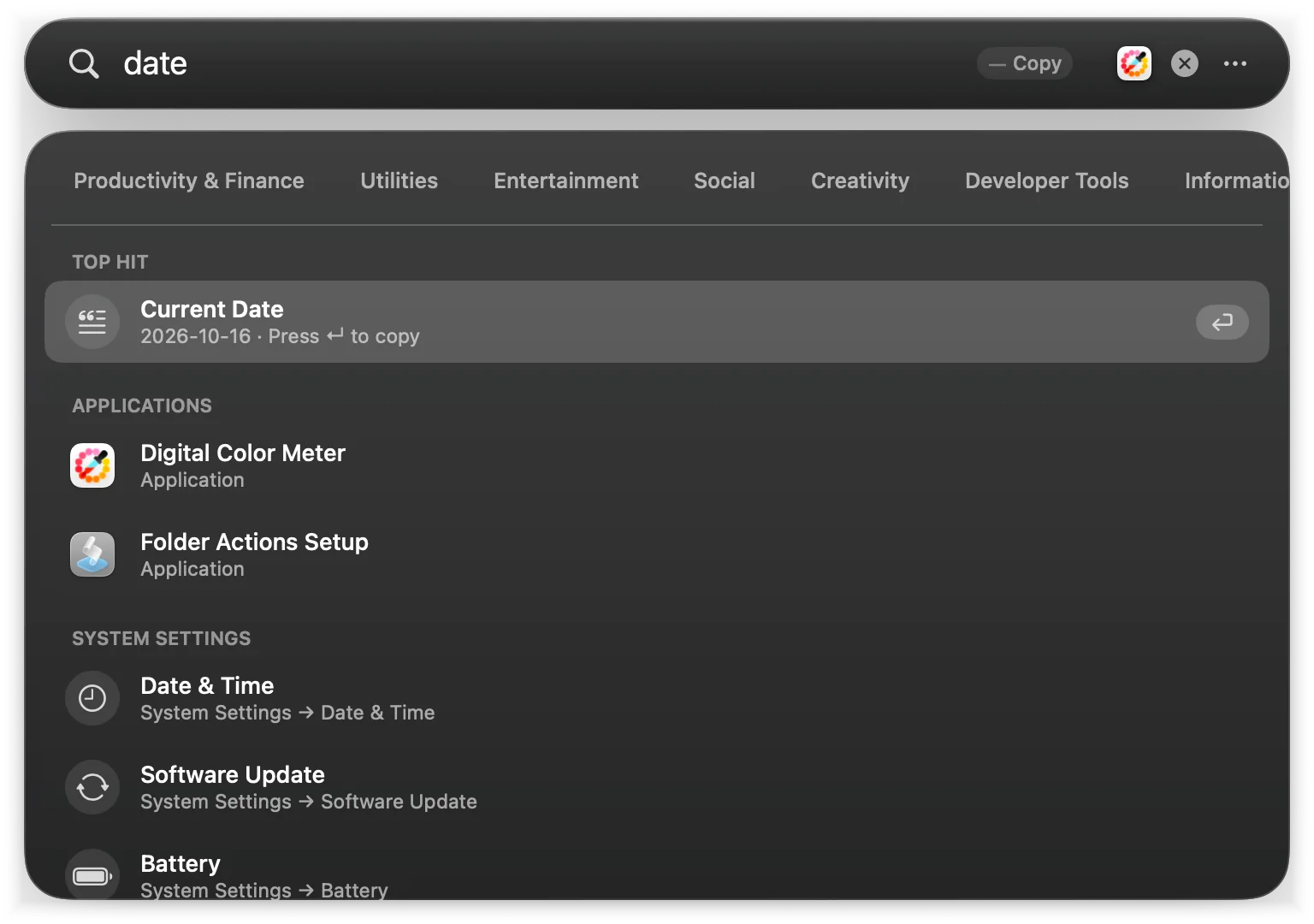
Snippets are short texts that ↵ copies to the clipboard, with a few placeholders filled in when you search. Type the keyword:
| Keyword | Name | Copies |
|---|---|---|
date | Current Date | Today as 2026-10-16 |
iso | ISO Timestamp | The time in UTC, such as 2026-10-16T07:30:00Z |
uuid | New UUID | A new lowercase UUID |
shrug | Shrug Emoji | ¯\_(ツ)_/¯ |
flip | Table Flip Emoji | (╯°□°)╯︵ ┻━┻ |
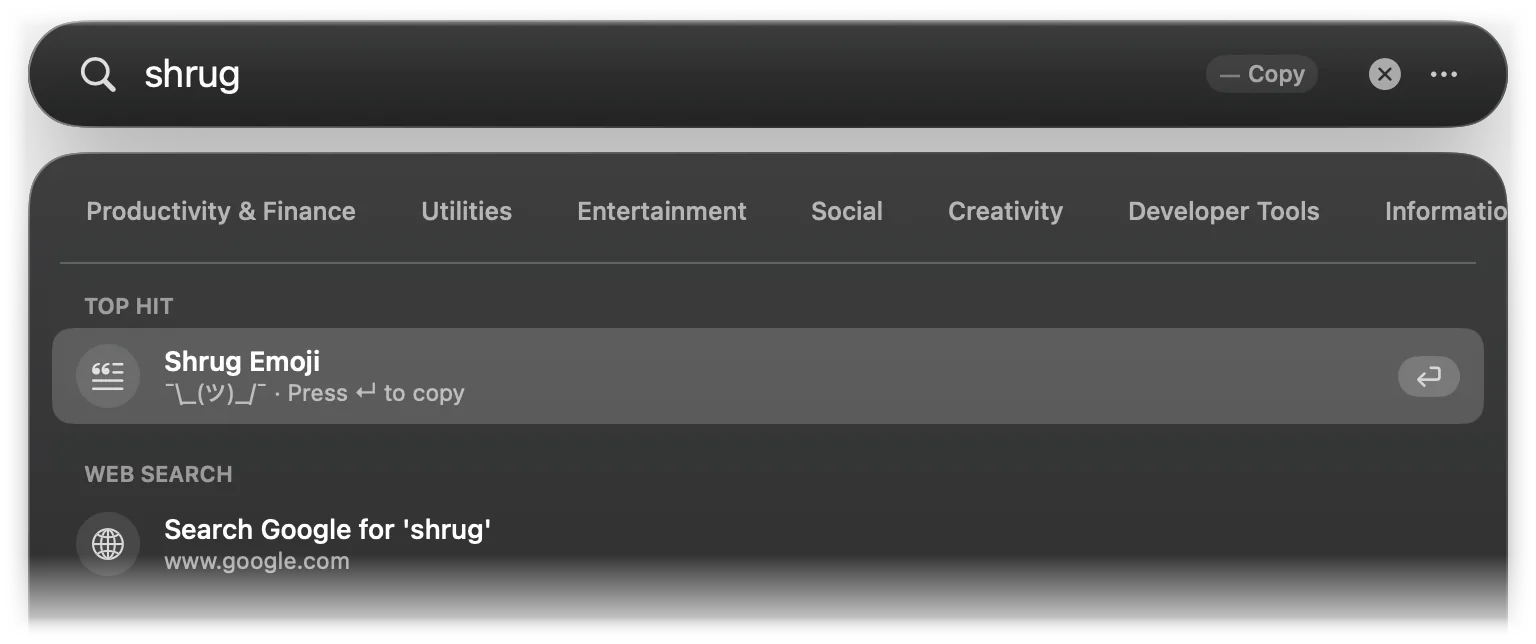
A snippet appears when its keyword equals or starts with what you typed, or when its name contains it. The placeholders a snippet can use are {{date}} (yyyy-MM-dd), {{time}} (HH:mm:ss), {{iso}} (ISO 8601 in UTC), {{uuid}} and {{clipboard}} (the current clipboard text).
Lightspot has no editor for snippets yet: the five above are the ones you get, and they are not part of the settings export.