Developer tools
Small jobs you would otherwise open a website or a terminal for: generate a UUID, encode or hash a string, read a JWT, pretty-print JSON, convert a timestamp, check a colour, free a port, see how busy the Mac is. Everything here runs offline.
Lightspot guide
Encoders and generators
Type a keyword, a space and your text. The answer appears in the Developer Tools section, usually as the Top Hit, and ↵ copies it and closes Lightspot. These results depend only on what you typed, so Lightspot does not keep them in its search history.
| Type | You get | ↵ copies |
|---|---|---|
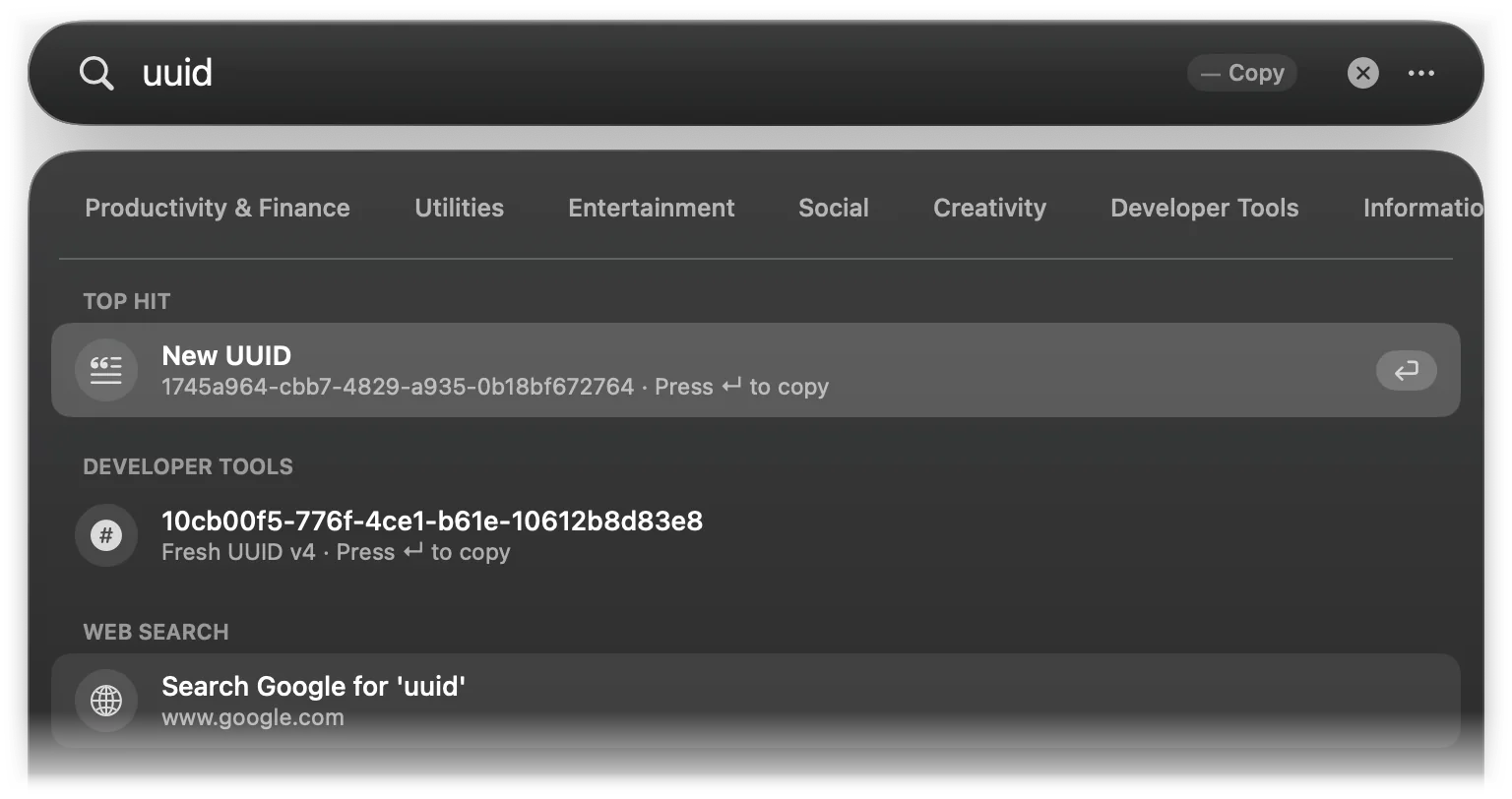
uuid, guid | A new random UUID (version 4, lowercase) | The UUID |
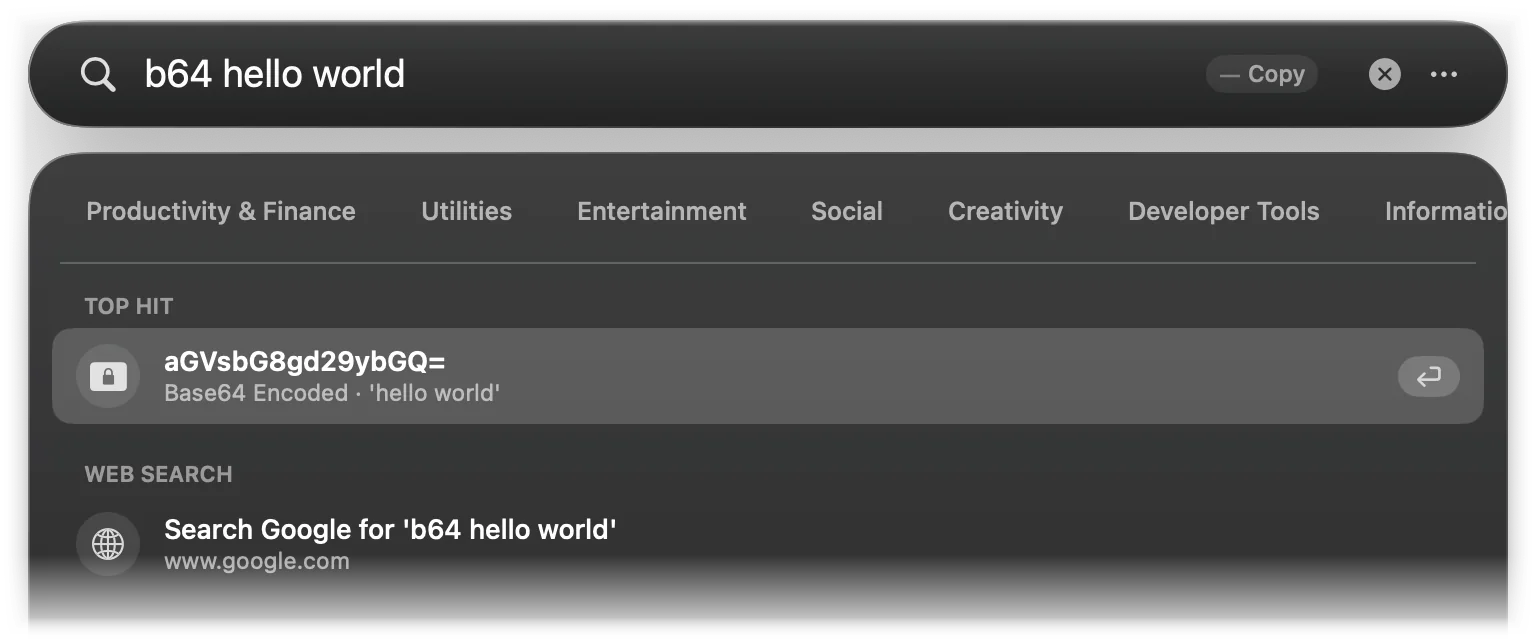
b64 hello, base64 hello | Base64 of the text | The Base64 string |
b64d aGVsbG8=, b64 decode …, base64 decode … | The decoded text (padded Base64 that decodes to text) | The text |
urlencode a b&c | Percent-encoded text | The encoded text |
urldecode a%20b | Decoded text | The decoded text |
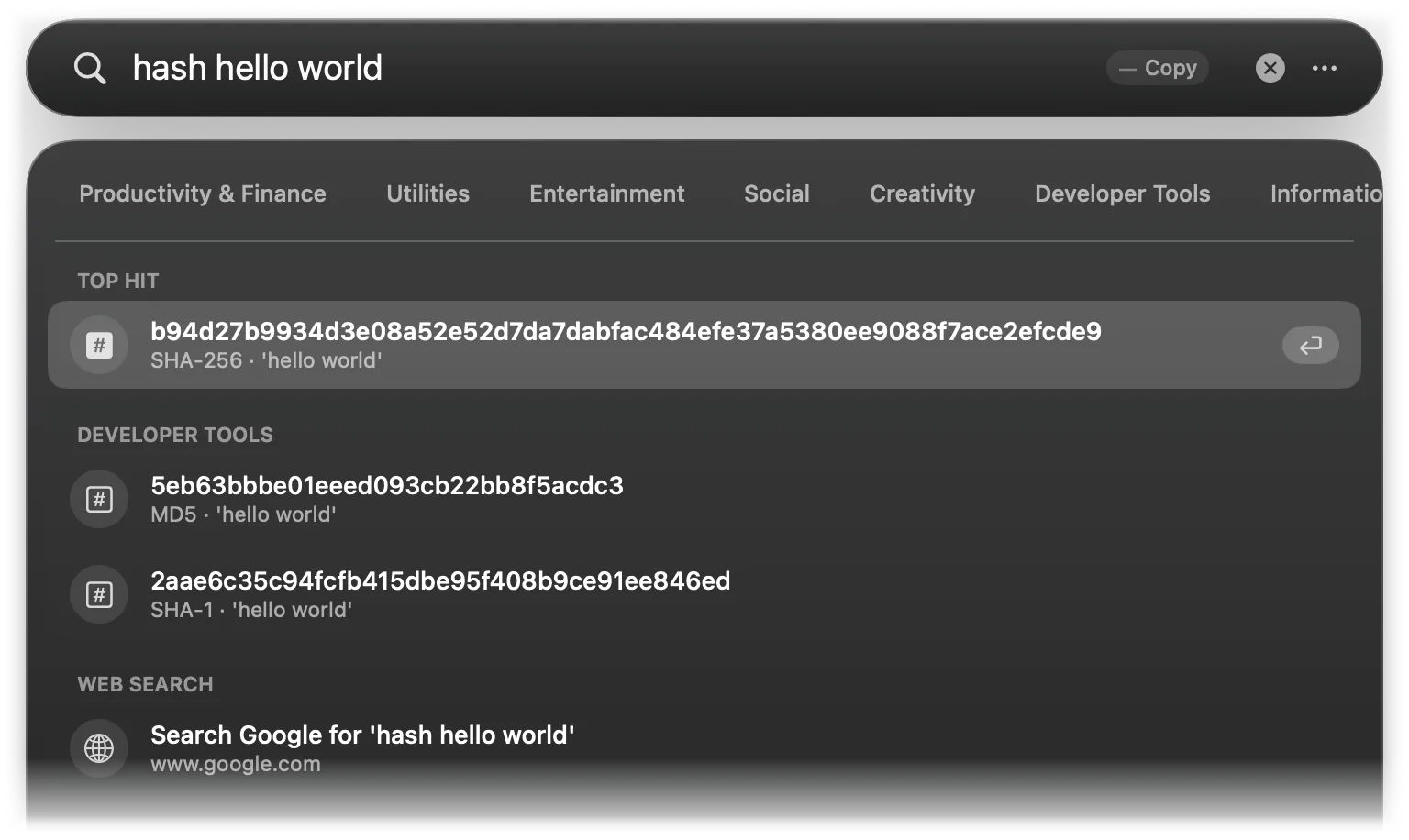
hash hello world | Three rows: SHA-256, MD5 and SHA-1 | The digest of the row |
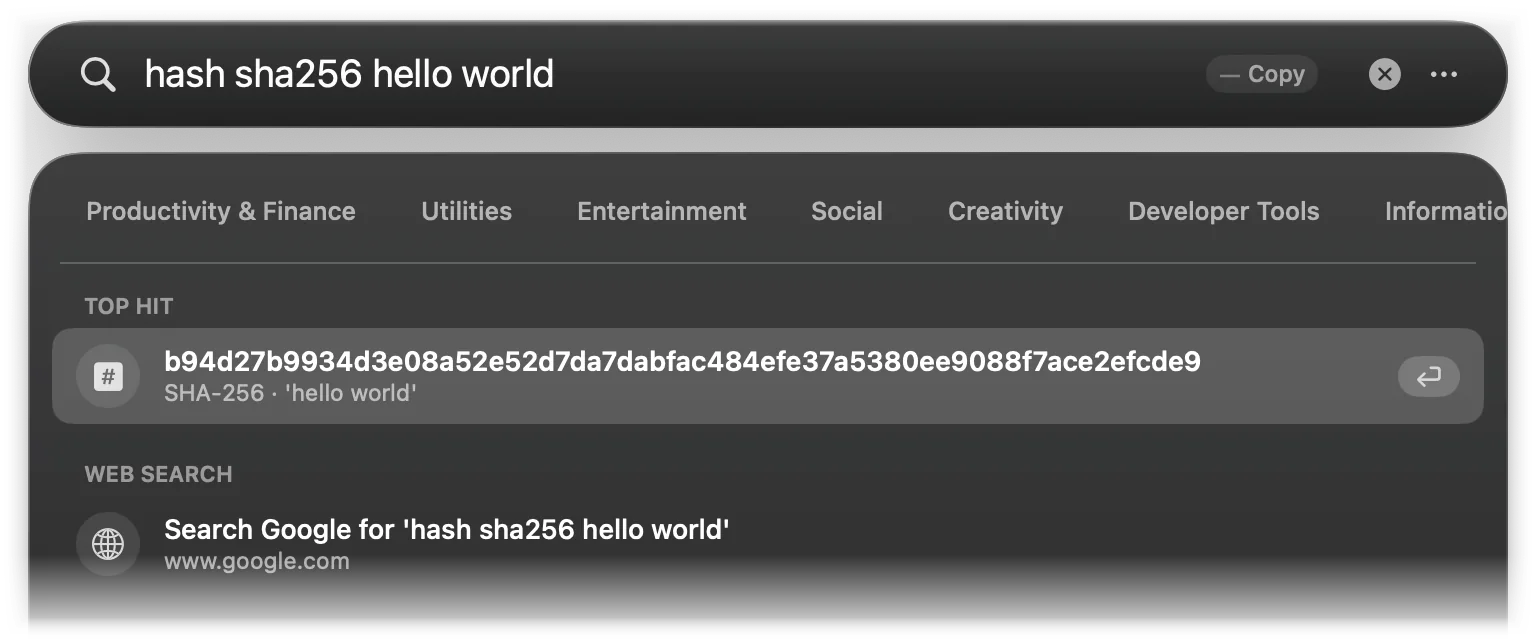
hash sha256 …, hash md5 …, hash sha1 … | One row for that algorithm | The digest |
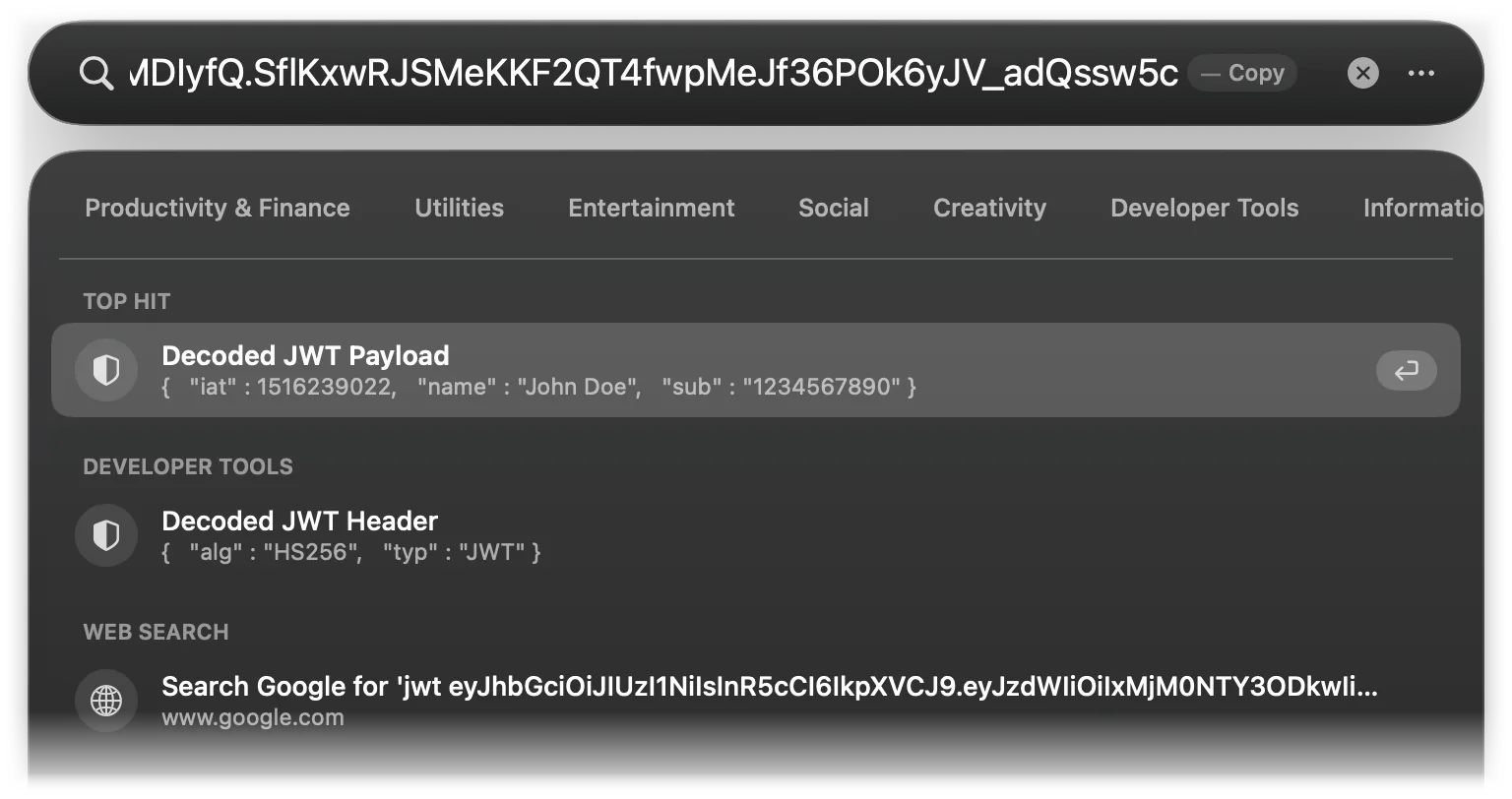
jwt eyJ…, eyJ… | The decoded payload, and the header on a second row (a bare token works too) | The row as indented JSON |
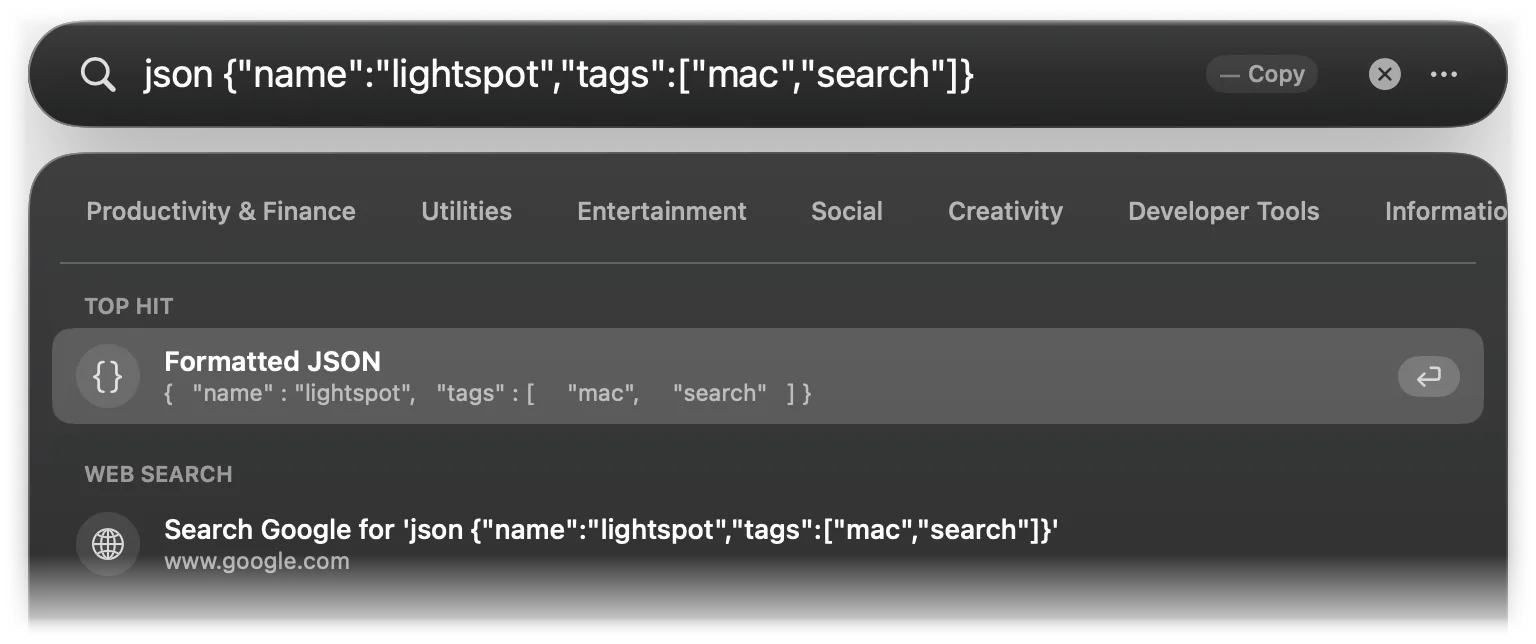
json {…}, {…}, […] | Formatted JSON (bare JSON works too) | The indented JSON |
epoch, now | The current Unix time | Seconds since 1970 |
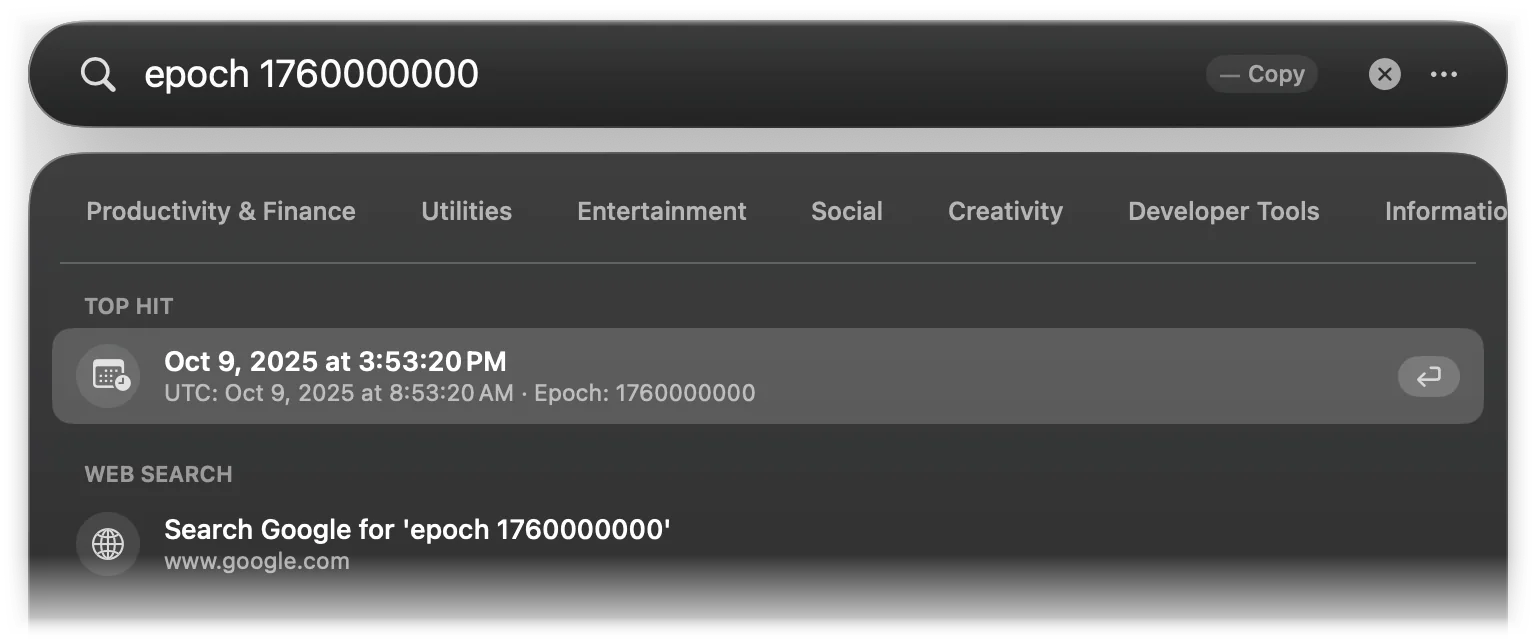
epoch 1760000000 | That moment in your time zone and in UTC | The local date and time |
epoch 2024-01-15 10:30 | The Unix time of that date | The seconds |
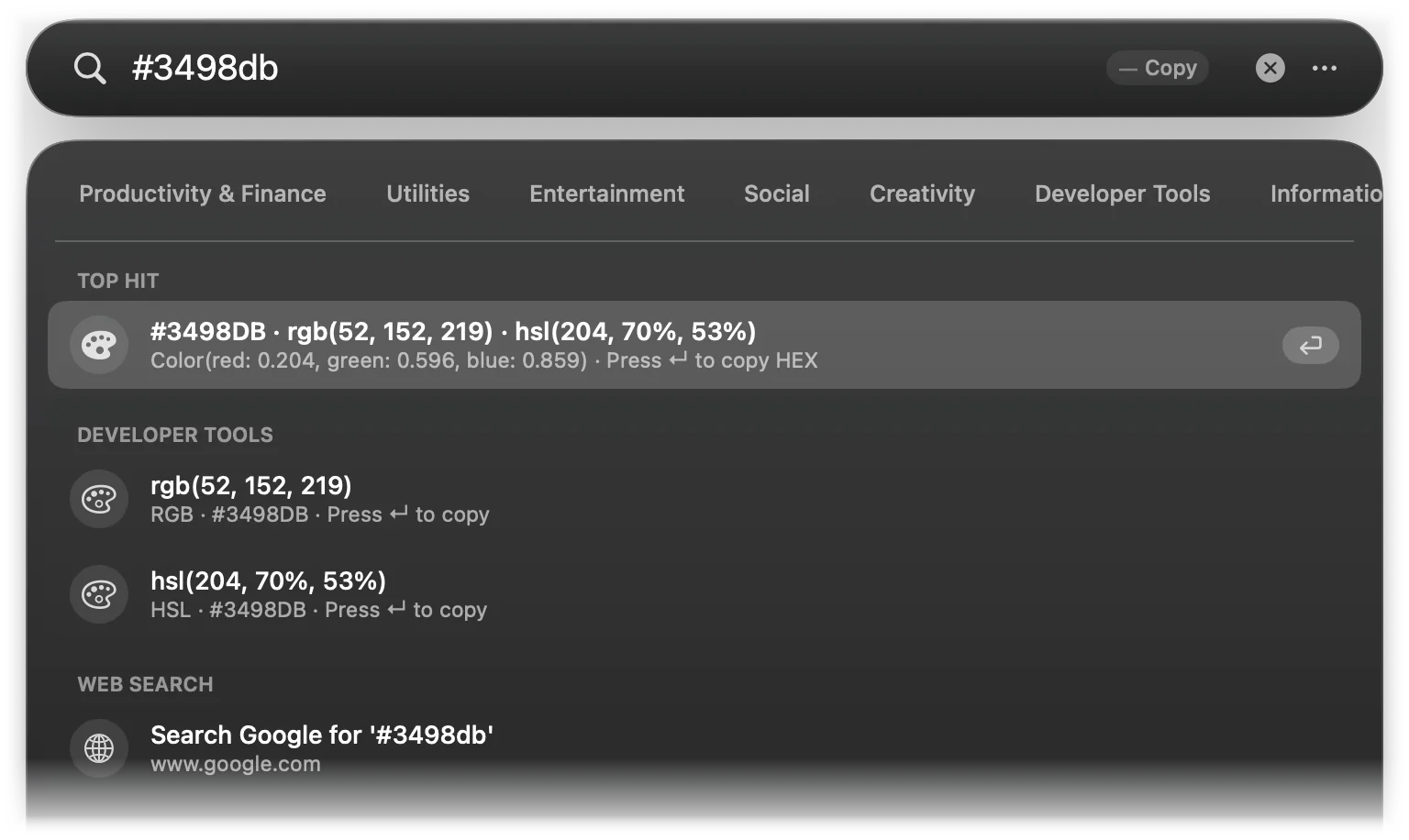
#3498db, #fff, #RRGGBBAA, rgb(52, 152, 219) | Three rows: hex, rgb() and hsl() | The value of the row |
Hashes
hash followed by text gives its SHA-256, MD5 and SHA-1, in that order. Put the algorithm first (sha256, md5 or sha1) to get only that one. Digests are lowercase hex.
JWT and JSON
Paste a token after jwt, or paste a token that starts with ey on its own. Lightspot decodes the payload on the first row and the header on the second, each shown on one line; ↵ copies the selected one as indented JSON with sorted keys. The signature is not checked.
JSON works the same way: json followed by JSON, or JSON starting with { or [. Invalid JSON gives no result, which makes this a quick validity check.
Timestamps
epoch or now shows the current Unix time in seconds, with milliseconds and the local ISO 8601 time underneath. epoch followed by a number turns a timestamp into a date; numbers above 100 billion are read as milliseconds.
epoch followed by a date goes the other way and gives its Unix time in seconds, with milliseconds and the UTC time underneath. These forms are understood:
epoch 2024-01-15(midnight, your time zone)epoch 2024-01-15 10:30andepoch 2024-01-15 10:30:00(your time zone)epoch 2024-01-15 10:30:00Zor…10:30:00+07:00, with the zone written right after the seconds- A
Tbetween date and time also works:2024-01-15T10:30:00Z
Colours
A hex colour (#RGB, #RRGGBB or #RRGGBBAA) or an rgb() value gives three rows: the hex code, rgb() and hsl(), using rgba() and hsla() when an 8-digit hex code is transparent. ↵ copies the value of the selected row.
Kill a process or free a port
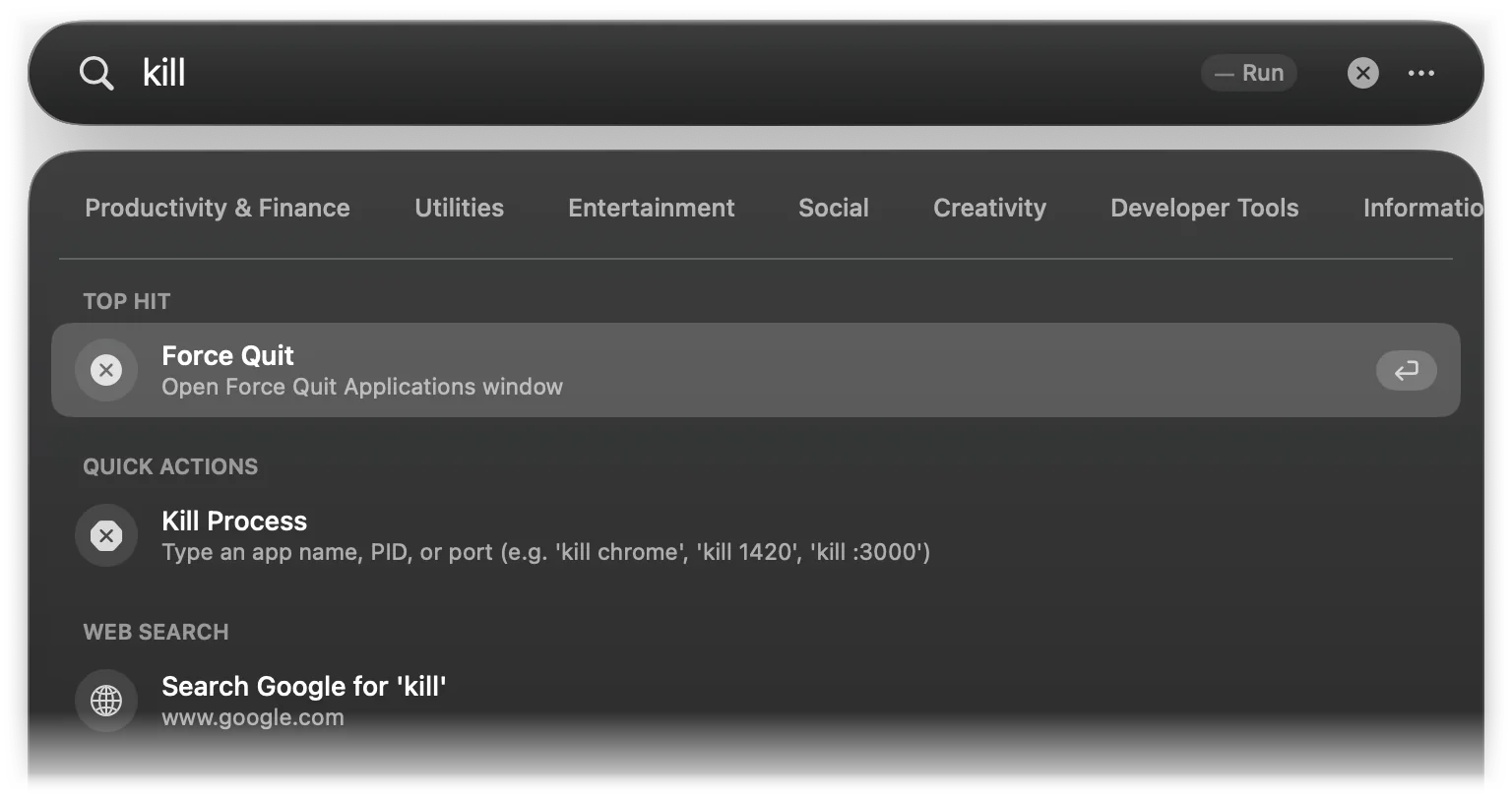
Start with kill and a space. Type kill alone to see the hint:
| Type | Finds |
|---|---|
kill :3000 | Processes listening on TCP port 3000 |
kill 3000 | A number from 81 to 65534 is tried both as a port and as a process ID |
kill 14205 | The process with that ID |
kill chrome | Open apps whose name matches |
kill node | Command-line processes whose name contains the text, with their CPU and memory use |
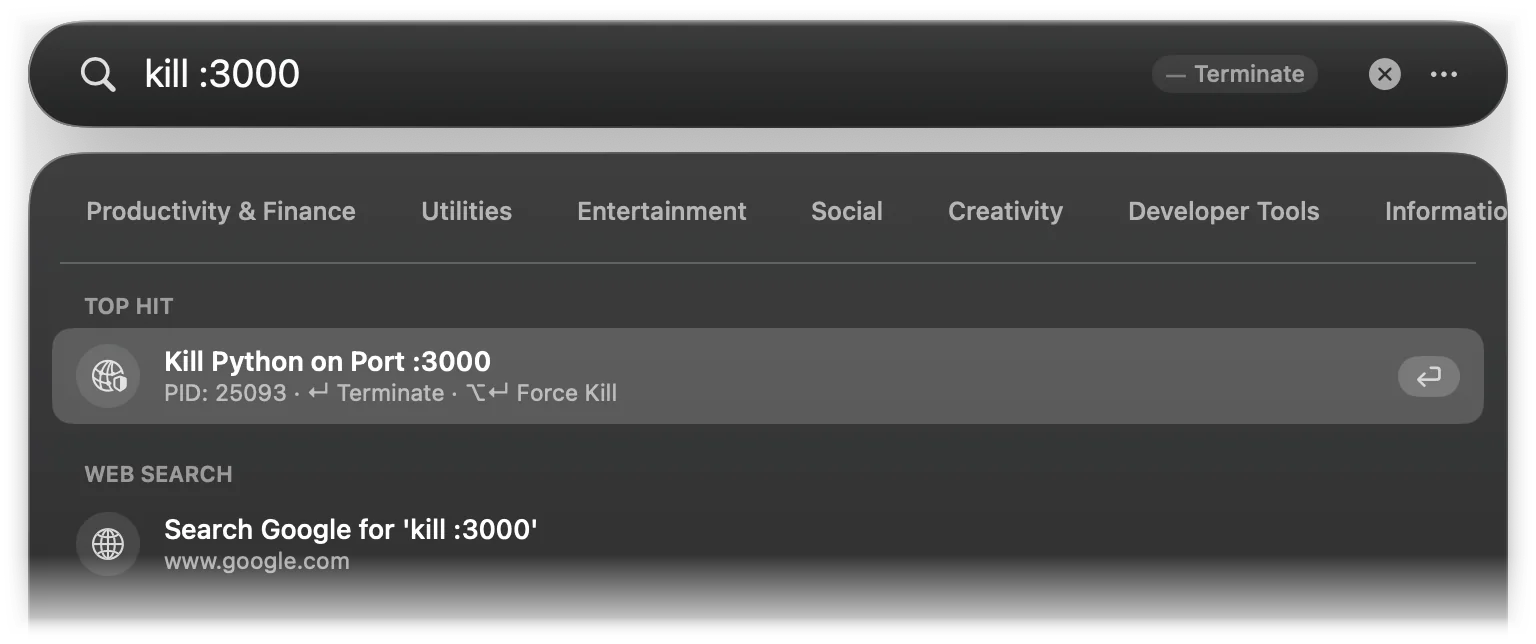
- ↵ asks the process to quit: apps get a normal Quit, other processes a
SIGTERM. - ⌥↵ forces it: Force Quit for apps,
SIGKILLfor other processes. - If the process belongs to another user or to the system, Lightspot asks for administrator rights (Touch ID or your password, see sudo with Touch ID) and kills it with
killas root.
Only programs that listen on the port are listed, not the browser tabs connected to them, and each row is named after the program (Kill Python on Port :3000). Lightspot never offers to kill itself, launchd, kernel_task, WindowServer or loginwindow. The process and port lists are refreshed in the background every couple of seconds while you type, so a server you have just started may appear a keystroke later. Kill results share the four-row Quick Actions section and are not kept in search history.
Hardware readout
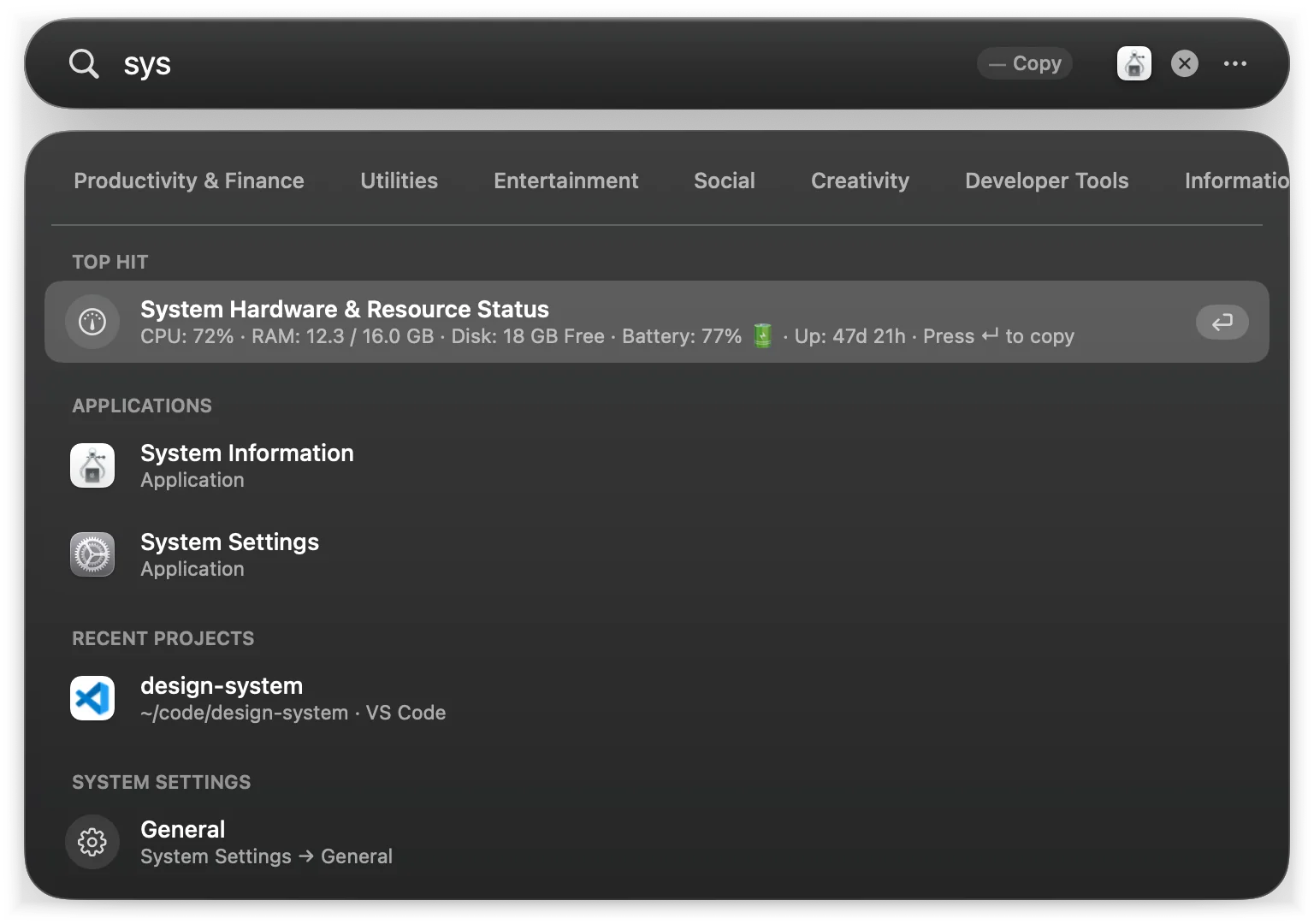
Type sys, system, specs, hardware, cpu, ram, battery or uptime (the whole word) for one line with the state of the Mac. ↵ copies a longer report.
| Value | How it is measured |
|---|---|
| CPU | The one-minute load average divided by the number of cores, as a percentage (100% means the cores are fully busy) |
| RAM | Active, wired and compressed memory, out of the installed total, in GB |
| Disk | Free space on the startup disk |
| Battery | Charge, and whether it is charging or on AC power; “No Battery (Desktop)” on Macs without one |
| Up | Time since the last restart |
The values come straight from macOS system calls (Mach, IOKit and sysctl), so no command is run and the line appears as fast as any other result.
IP address
Type ip, my ip, public ip or ipv4 for your local IPv4 address (Wi-Fi or Ethernet) and your public address. ↵ copies both.
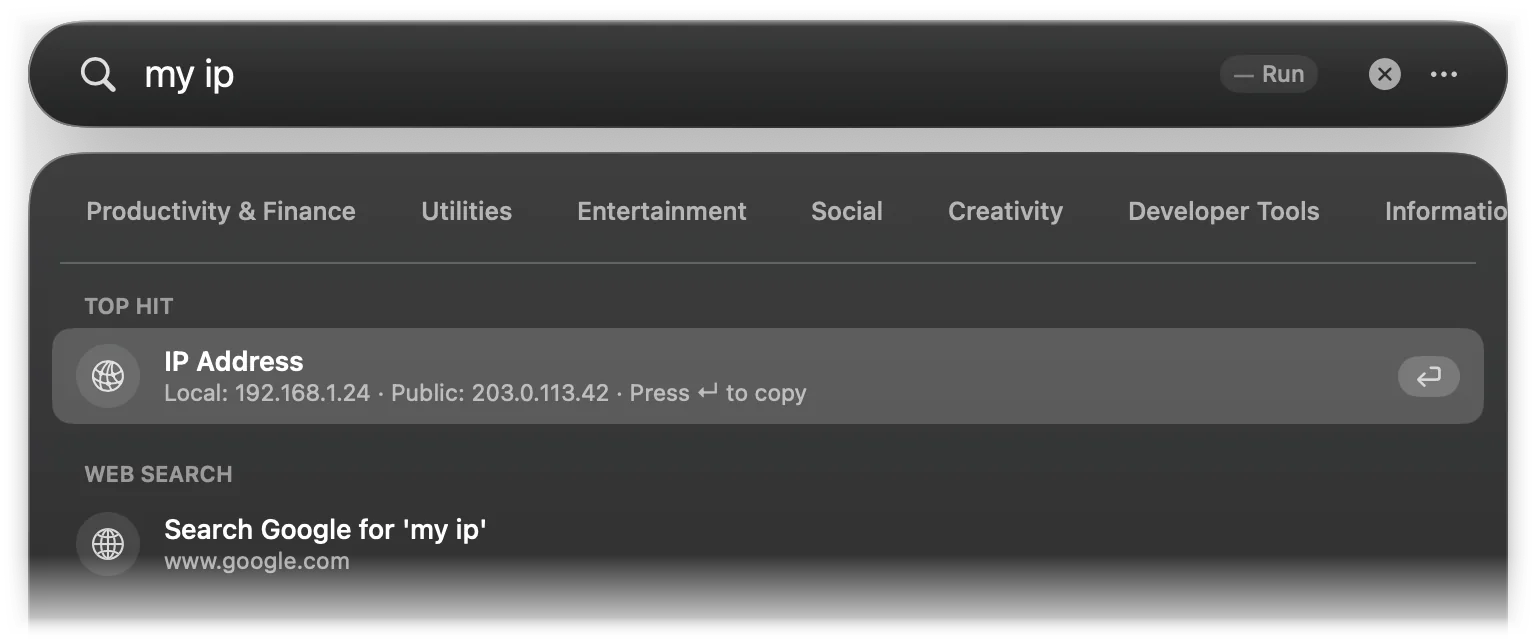
The public address comes from a request to api.ipify.org. Lightspot sends it only when you ask: when your query names the IP address clearly (ip, my ip, public ip, ipv4, but not local ip) or when you press ↵ on the row. Otherwise the row shows only the local address and says Press ↵ to copy with public IP. The answer is kept in memory for 15 minutes. More on the privacy page.