Clean Dev Mac
Developer caches and build folders grow until the disk is full. Type cdm and Lightspot measures them with the rules of CleanDevMac (cdm), lets you tick what to remove, shows the plan and cleans it, with cdm’s own safety checks.
Lightspot guide
Opening it
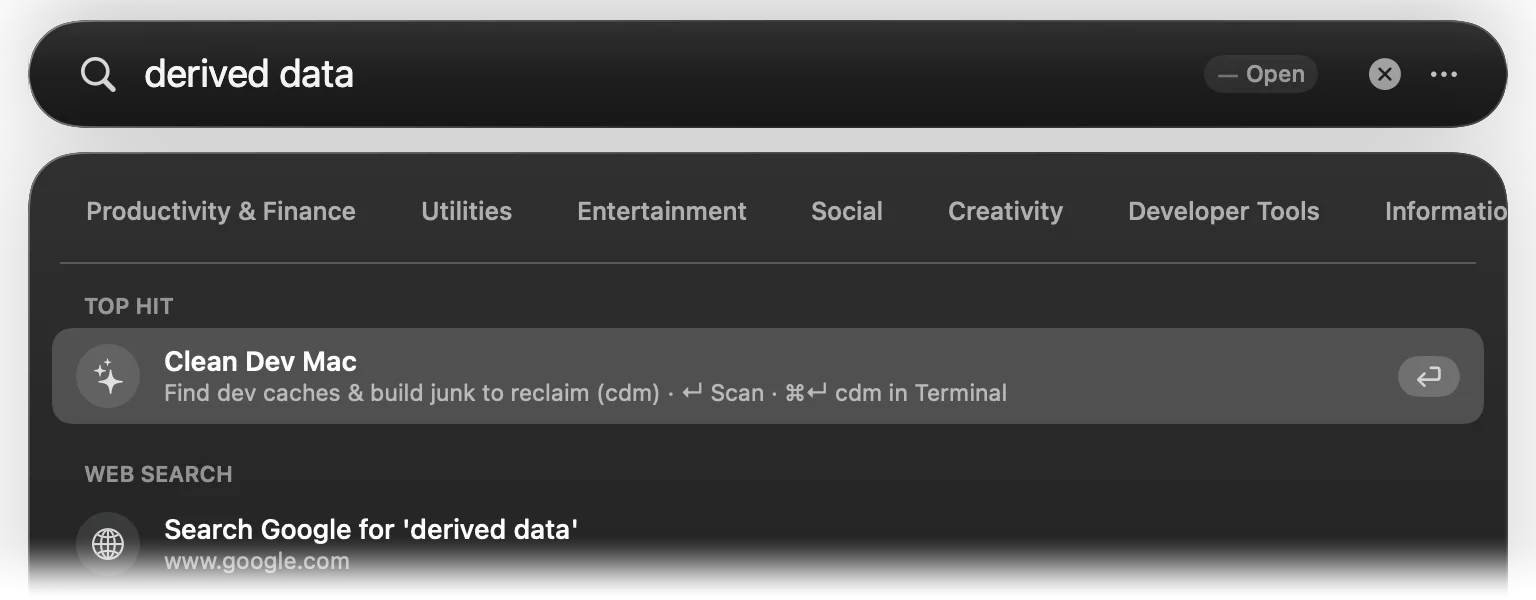
Type cdm, clean dev mac or what you want gone, such as derived data, npm cache or gradle cache, and press ↵ on the Clean Dev Mac row, or choose Clean Dev Mac… in the menu. The row says where things stand: before a scan it offers one, afterwards it shows how much is reclaimable, and after a clean how much was freed. free up space finds it too, with Mac Tweaks as the Top Hit: Mac Tweaks frees the space macOS keeps and links back here.
Since 1.4.1 Clean Dev Mac opens in a window of its own, which stays open while Finder, a password prompt or cdm in your terminal takes the focus. Up to 1.4.0 it was drawn inside the search panel, which closed as soon as anything else came to the front. Move the window where you like and it opens there next time; it can be made larger, not smaller. It closes with its close button, ⌘W, or Esc when no plan is open, and a scan or a clean keeps running with it closed. When it is already open, the row, the menu item and Mac Tweaks’ link bring it to the front as it was.
The cache scan
When it opens, Clean Dev Mac measures every cache that cdm’s rules know, the way du counts disk use (a hard-linked file once, also when it sits in two of a category’s folders, and a sparse file by what it really occupies). Categories are listed biggest first and ticked to cdm’s defaults: most caches are ticked, while Xcode archives, the Maven repository, model caches, Playwright’s browsers, the Trash and a few others are not. The header shows the disk’s total, used and free space.
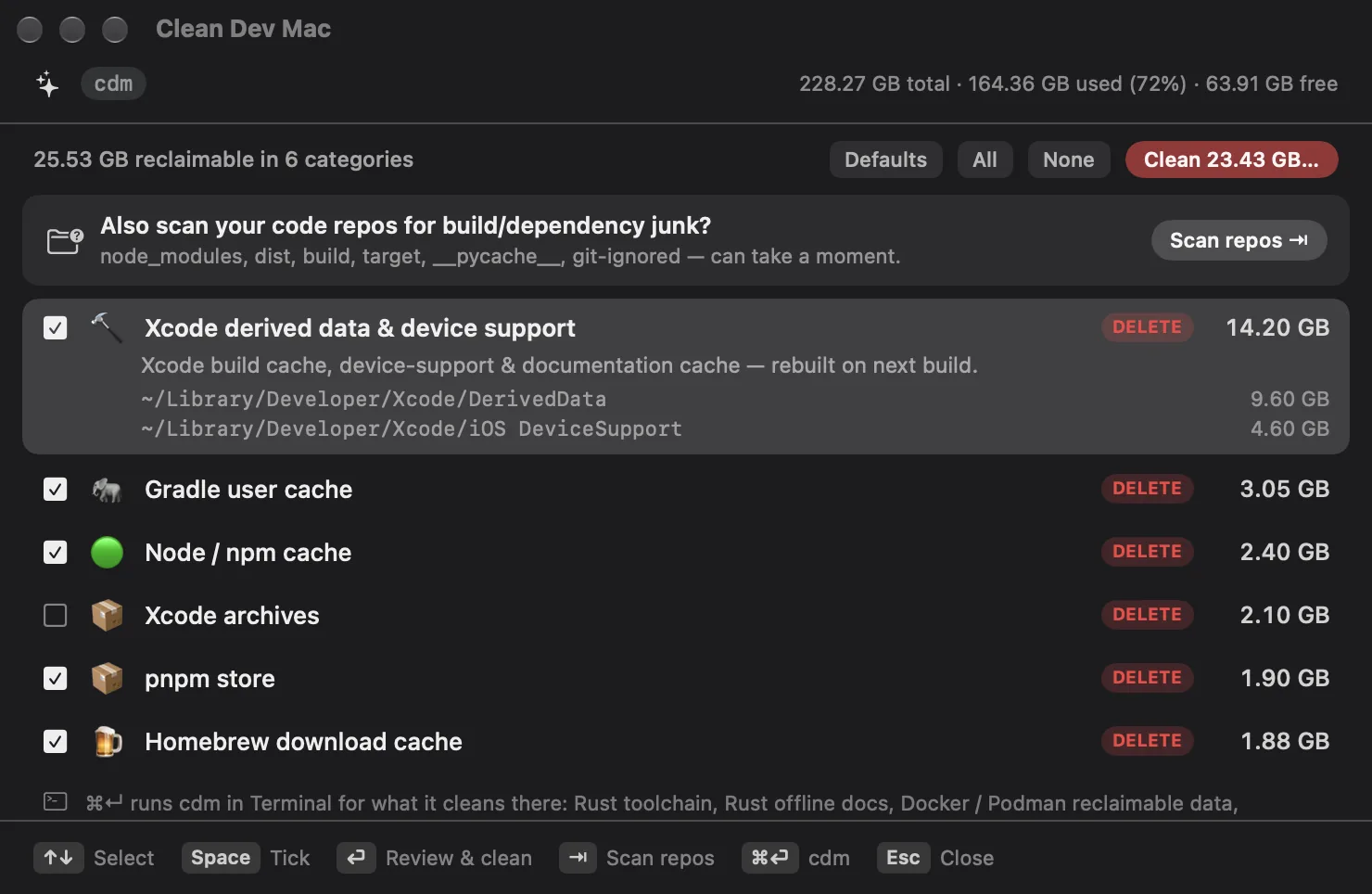
Each row has a tag for what cleaning does: DELETE removes for good, TRASH moves to the Trash, EMPTY TRASH empties it. The selected row shows the category’s description and every folder with its size. Defaults, All and None reset the ticks. A scan is kept for five minutes, so closing and reopening Clean Dev Mac does not measure everything again. cdm’s rules cover, among others:
| Group | Caches |
|---|---|
| Xcode | DerivedData, device support and documentation caches; archives (unticked) |
| JavaScript | npm, pnpm, Yarn, Bun and Deno caches, Turbo and Vite caches, Expo caches |
| JVM | Gradle user cache, sbt and Ivy caches; the Maven repository (unticked) |
| Go and Rust | Go build and module caches, the Cargo registry, sccache |
| C and Swift | Clang’s module cache for builds outside Xcode (command line, SwiftPM, CMake) |
| Python | pip, uv and poetry caches; Conda packages and ML model caches (unticked) |
| Other languages | Ruby and Bundler, PHP Composer, Swift Package Manager, CocoaPods, Bazel, Zig and OCaml; Dart, Flutter and NuGet (unticked) |
| Tools | Homebrew downloads, JetBrains caches and logs, Zed’s language servers and logs, mise and asdf, pre-commit, Docker buildx, cloud CLIs, CI runners, AI command-line tools |
| Claude Code | Sessions untouched for 30 days, to the Trash; older Claude Code builds Claude desktop downloaded (both unticked) |
| Apps | Browser caches, Electron and Chromium app caches, crash-reporter and updater caches, the copies of Chrome a crashed browser leaves behind; Chrome’s on-device AI models, the Claude desktop VM image and the aerial wallpaper videos macOS downloads (unticked) |
| Android | Build caches, emulator snapshots; system images no emulator uses, images only long-idle emulators use, and every build-tools and platform version but the newest (unticked) |
| Also | Playwright and Puppeteer browsers, crash and diagnostic logs, the Trash (all unticked) |
A few categories work out what to offer, as cdm does:
- Android system images count only when no emulator (AVD) boots them. An image that only emulators idle for 60 days boot gets a row of its own, naming those emulators, which will not start again until the image is reinstalled.
- Older Android build-tools and platforms, and Claude desktop’s older Claude Code builds: every version but the newest of each.
- Claude Code sessions untouched for 30 whole days, each with its folder of subagent and tool output, never one a running session uses. They always go to the Trash and are never ticked for you, whatever the rule says: a transcript is the only record of a conversation.
- Chrome’s leftover copies. Chrome and other Chromium browsers copy themselves into your temp folder at every launch and delete the copy only when they quit cleanly. Clean Dev Mac offers the copies a crash or a forced quit left, never one a running browser may still use, and sizes them by what they hold on their own:
ducounts the blocks they share with the browser again and shows hundreds of megabytes for a copy of a few hundred kilobytes.
Clang’s module cache, Node’s compile cache and Chrome’s copies live in your own temp folders under /private/var/folders, the one place outside your home folder that Clean Dev Mac reaches (see Safety).
The restart and Claude Code notes
Two notes come with each scan, as in cdm, and show only when they matter:
- Restart. Once what a restart would free is 100 MB or more and at least what the disk has free, a line under the list says how much: the swap, the temp files a restart empties, and deleted files that apps still hold open. From 1 GB it names the apps holding them.
- Claude Code history. When Claude Code’s session history passes 1 GB and holds sessions past its age limit, a note at the top points to its
desktopSessionCleanupPeriodDayssetting. It is advice only; Lightspot never changes Claude Code’s settings.
Your code repos
After the caches, Clean Dev Mac asks, as cdm does, whether to scan your code repos as well. Press ⇥ or click Scan repos. You get one unticked row per repo that has something to remove, with its dependency folders, its build output and the other files its git ignores.
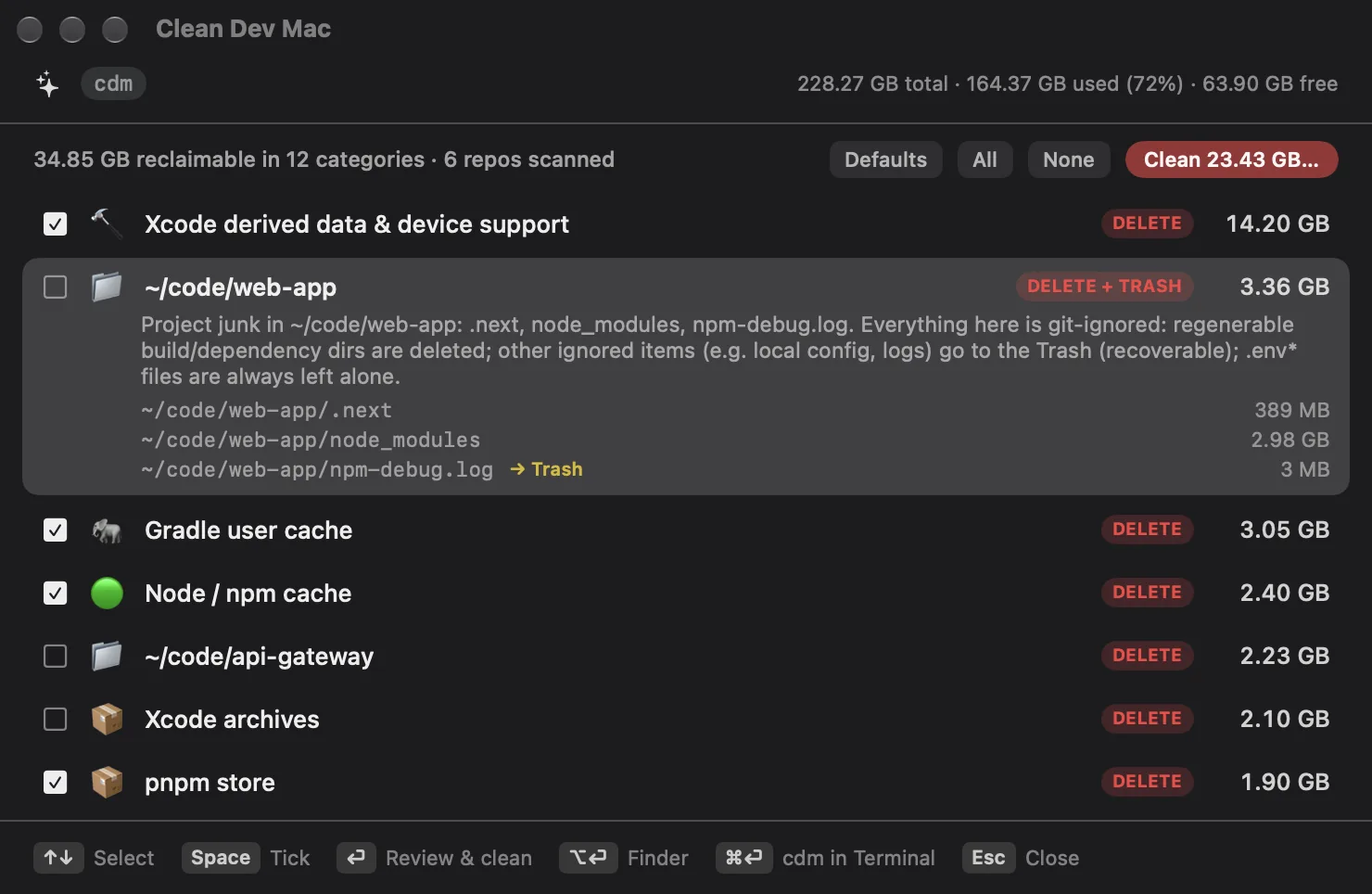
- Only what git ignores. A folder named like build output is only a candidate. It is offered when the repo’s own git lists it, or a folder above it inside the repo, as ignored and untracked, so a
build/folder you commit stays. - Deleted or trashed, per file. The folders in the table below are deleted, because an install or a build makes them again. Every other git-ignored file, such as local config or logs, goes to the Trash; the selected row marks those with → Trash.
- Never offered:
.envfiles (and anything starting with.env), and a folder that holds a repo the scan found, so a parent repo that ignores a nested clone cannot send it to the Trash. A git worktree, whose.gitis a file, and a clone in a folder the scan skips, such as the worktrees Claude Code keeps in.claude/worktrees, are offered like any other ignored folder: they go to the Trash, and a checkout is easy to make again. - Repos that an AI tool keeps by the dozen (
~/.gemini/antigravity/brain) become one row.
| Kind | Folder names |
|---|---|
| Node dependencies | node_modules |
| JS and web build output | dist, build, out, .next, .nuxt, .output, .svelte-kit, .astro, .angular, .turbo, .parcel-cache, storybook-static, coverage |
| Rust and JVM build output | target, .gradle |
| Python caches and virtualenvs | __pycache__, .pytest_cache, .mypy_cache, .ruff_cache, .tox, .nox, .venv, venv |
| Apple and mobile build output | Pods, .build, DerivedData, .expo, .cxx |
| Dart and Zig build output | .dart_tool, .zig-cache, zig-out |
Lightspot looks for repos in your home folder, six levels deep. It does not enter ~/Library, ~/Documents, ~/Desktop, ~/Downloads, ~/Pictures, ~/Movies or ~/Music, nor tool folders such as ~/.npm, ~/.cargo or ~/.vscode. Then it asks each repo’s git which files it ignores, with git ls-files --others --ignored --exclude-standard --directory, several repos at a time and 400 at most. The repo scan needs git from Homebrew, the Command Line Tools or Xcode; without one, Lightspot leaves repos to cdm in the terminal.
Cleaning
↵ shows the plan: every ticked category, how it is removed and its size. Nothing has happened yet. ↵ again cleans; Esc goes back to the list.
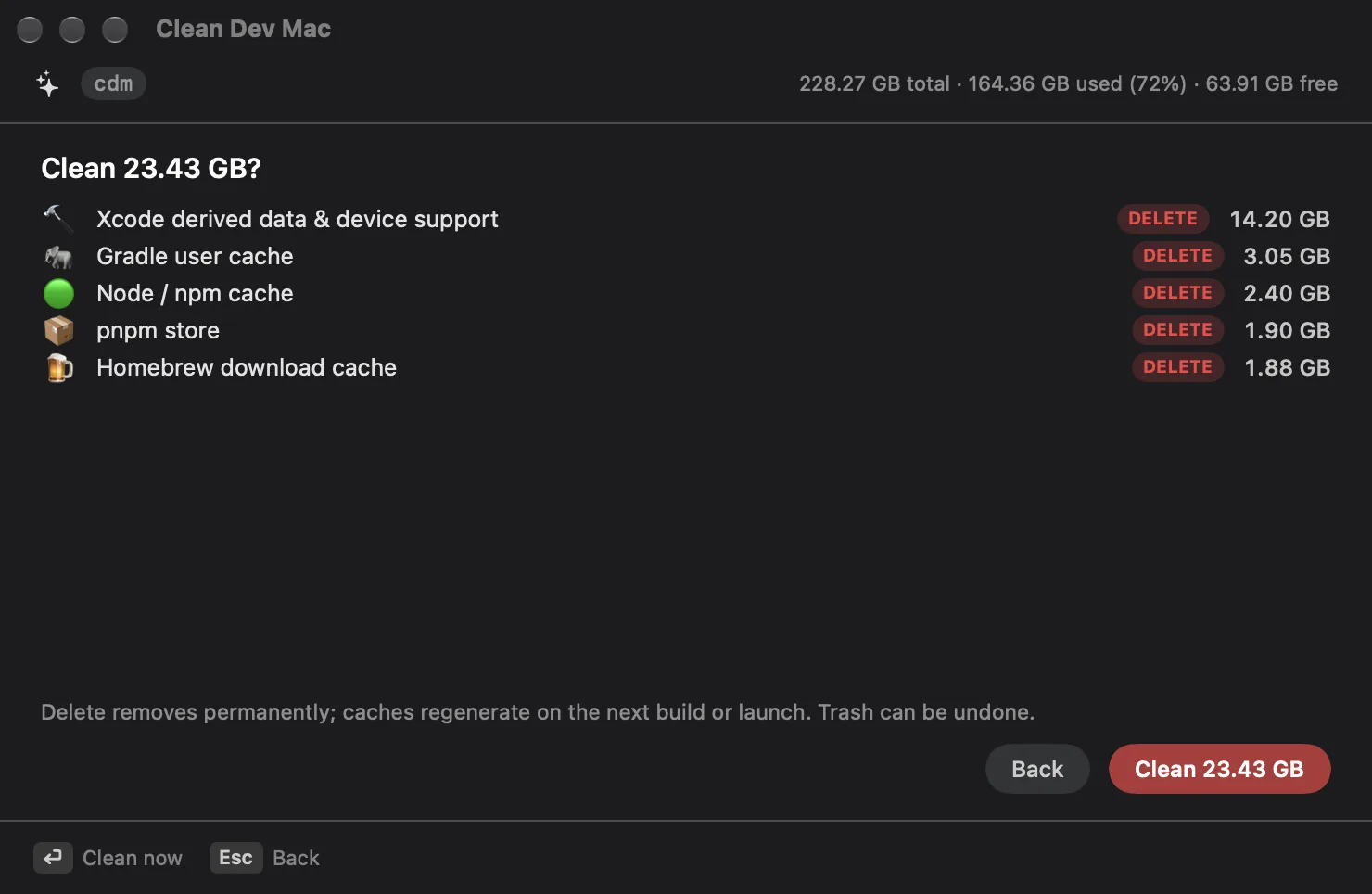
- If an app that would rewrite a ticked cache is still running, such as your browser, Slack or VS Code, the plan names it: quit it first and open it again after the clean.
- Cleaning goes on if you close the window. When it ends, Clean Dev Mac shows roughly how much was freed, the disk before and after, and anything it could not remove.
- Every clean is written to
~/.cleandevmac/clean.log, the log cdm keeps, marked CleanDevMac run (Lightspot), so one file lists the cleans of both. Past 1 MB the log keeps its newest 256 KB.
Keys
| Key | In Clean Dev Mac |
|---|---|
| ↑ ↓ | Select a category; the selected one shows what it is and every path with its size |
| Space | Tick or untick the selected category |
| ⇥ | Scan your code repos too, when Lightspot offers it |
| ↵ | Show the itemized plan; ↵ again cleans |
| ⌥↵ | Show the selected category’s first folder in Finder |
| ⌘↵ | Run the full cdm in your terminal; the window stays open |
| Esc | Back from the plan; otherwise close the window |
| ⌘W | Close the window |
Safety
Every path goes through cdm’s safety check, is_safe_target, ported to Swift and tested against cdm’s own test cases. It runs when the list is built and again right before anything is removed, because the plan may have been open for a while.
- A path must be inside your home folder, also after symbolic links are resolved, and may not climb out of it with a
..step. The one exception, as in cdm, is inside your own temp folders under/private/var/folders, checked the same two ways, never those folders themselves. ~/Documents,~/Desktop,~/Downloads,~/Pictures,~/Movies,~/Music,~/.ssh,~/.gnupgand iCloud Drive are never touched, whatever a rule says.- A symbolic link is removed, never followed. Empty the Trash only ever empties
~/.Trash. - Lightspot never reads other apps’ sandbox folders (
~/Library/Containersand~/Library/Group Containers), so macOS never asks whether it may access data from other apps. - Nothing is removed without the plan and a second ↵.
Where the rules come from
Lightspot reads cdm’s own rule files, so a cache cdm learns to clean, Lightspot cleans too. It takes the first of:
~/.cleandevmac/rules, cdm’s place for your own rules. If that copy is broken, Lightspot says so instead of falling back.- cdm’s current rules on GitHub, from
raw.githubusercontent.com/cleandevmac/cdm/main/rules/, fetched when you open Clean Dev Mac, at most once an hour, without cookies or a cache on disk. - The copy built into Lightspot, when GitHub cannot be reached.
On a real home folder the scan finds the same categories as cdm -n -y, and the repo scan offers the same paths as cdm’s own, except a folder that holds a nested repo, which cdm offers.
What stays with cdm
Some of what cdm cleans needs more than files: Docker and Podman data needs the container engine, Rust toolchains and Rust’s offline docs are removed with rustup, data of apps you deleted needs a scan of your apps, and sandboxed app caches sit in other apps’ sandboxes. Clean Dev Mac names these and leaves them to cdm. ⌘↵, in Clean Dev Mac or on its row, runs the latest cdm release in your terminal:
curl -fsSL https://github.com/cleandevmac/cdm/releases/latest/download/cdm | bashcdm is a separate project: CleanDevMac, source on GitHub.